# Formlabs Developer Portal
> Python SDK, PreForm API, and Web API documentation for building on Formlabs printers - getting started, runnable examples, and reference links.
# Get started
The Formlabs Python SDK runs the steps you take by hand in PreForm from a Python
script: Job Setup, orienting, supports, layout, and sending the job to a printer or a
Printer Group. A script prepares every incoming order with the same settings, repeats a
job without clicking through it again, or prices a part for a quote.
The script connects to the PreForm window you have open, and each step shows up in it.
PreForm Server runs the same script with no window. The SDK also gets the tokens for
the Formlabs Web API behind Dashboard.
[Install the Developer Kit](https://developer.formlabs.com/getting-started/install.md)
# Install the Developer Kit
The Formlabs Python SDK, `formlabs-sdk`, drives PreForm from your own scripts. A
script connects to PreForm, then imports, orients, supports, and lays out models through
the PreForm API while the PreForm window shows each step.
## Requirements
The SDK runs on the following:
| Component | Version |
| --- | --- |
| Python | 3.11 or later |
| PreForm or PreForm Server | 3.64 or later |
| Operating system | macOS or Windows |
## Install the SDK
Install the SDK using `pip`:
**macOS:**
```bash
pip install "formlabs-sdk @ git+https://github.com/Formlabs/formlabs-api-python"
```
**Windows:**
```powershell
pip install "formlabs-sdk @ git+https://github.com/Formlabs/formlabs-api-python"
```
## Install PreForm
> **PreForm Insider Program:** Scripting PreForm from the SDK is available only in the PreForm Insider build. To get
> it, join the [PreForm Insider Program](https://formlabs.com/software/preform-insider-program/).
> The Insider build installs next to your current PreForm and leaves it in place.
Open the Insider build, click **File > Start PreForm Server**, and click **Start**
with your desired port in the textbox (default 44388). PreForm then accepts API
requests on your specified port, and every script on these pages attaches to it with
the `connect()` method.
## Connect to a running PreForm
With PreForm's API server started, attach to it and print who is logged in:
```python
from formlabs_sdk import FormlabsClient
with FormlabsClient() as client:
# connect() attaches to the running PreForm and leaves its login alone. Closing
# the client leaves PreForm running.
preform = client.preform.connect()
user = preform.current_user()
print(f"PreForm {preform.version} at {preform.base_url}")
# current_user() returns None when PreForm is logged out.
print(f"Logged in as {user.username}" if user else "Not logged in")
```
When the `connect()` method finds nothing on the port, it fails with
`SERVER_UNREACHABLE`. Check that PreForm is open and that **Stop Server** is visible
in the **File** menu, indicating that PreForm Server is running. To use another
port, pass the `port` argument.
## Prepare a model from Python
The following script prepares one STL file for a Form 4 in Grey V5 in the open PreForm
window:
```python
"""Connect to PreForm from Python and prepare a model in its window.
Before you run it, open PreForm, click File > Start PreForm Server, and start the server
on port 44388.
"""
import sys
from pathlib import Path
from formlabs_sdk import FormlabsClient
# PreForm resolves a relative path against its own working directory.
PART = str(Path(sys.argv[1]).resolve())
with FormlabsClient() as client:
# connect() attaches to the PreForm window on port 44388. Leaving this with block
# leaves PreForm open, with the prepared scene in it.
with client.preform.connect() as preform:
print(f"PreForm {preform.version} at {preform.base_url}")
# FORM-4-0 is the Form 4, and FLGPGR05 is Grey V5.
scene = preform.create_scene(
machine_type="FORM-4-0",
material_code="FLGPGR05",
layer_thickness_mm=0.1,
)
preform.import_models(scene_id=scene.scene_id, file=PART)
preform.auto_orient_models(scene_id=scene.scene_id)
preform.auto_support_models(scene_id=scene.scene_id)
preform.auto_layout_models(scene_id=scene.scene_id)
# Each call shows up in the PreForm window as it runs.
print("Prepared. Look at the scene in the PreForm window.")
```
Run it with the path to an STL file, for example `python start_preform.py part.stl`.
The `create_scene` method makes the choices of the **Job Setup** screen: printer,
material, and layer thickness. The next three calls correspond to **Auto-Orient All**,
**Auto-Generate All**, and **Layout All** in PreForm's orientation, supports,
and layout tools.
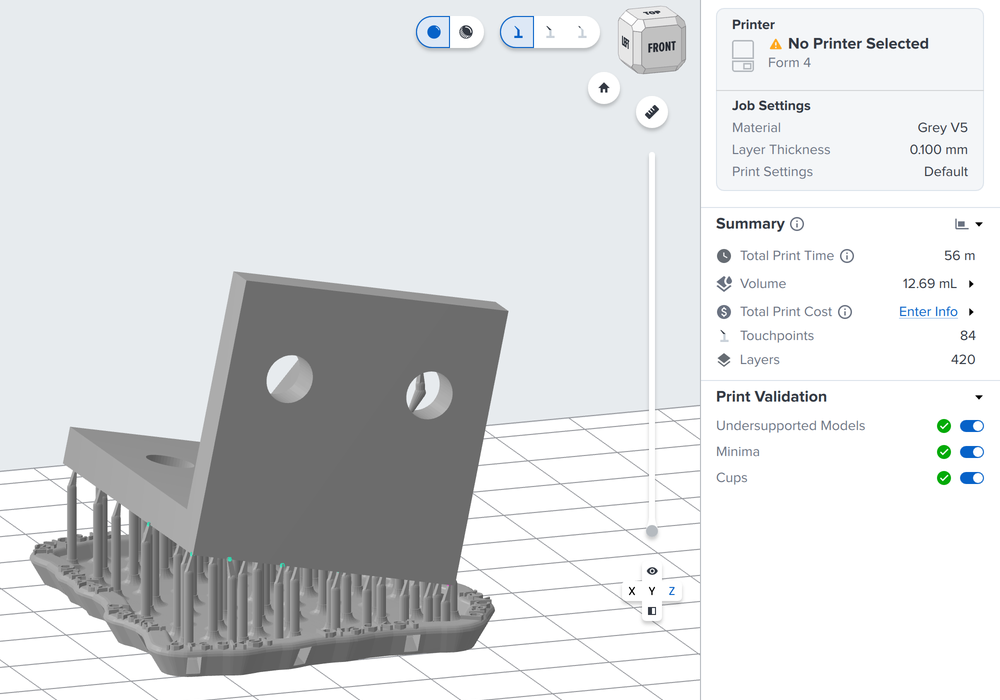
*PreForm after the script runs.*
For the codes of other printers and materials, the `list_print_settings` method lists
every combination the running PreForm supports. [Create your first script](https://developer.formlabs.com/getting-started/quickstart.md)
walks through each of these calls and sends the job to a printer.
To run the same scripts with no window, for example on a MES server, see
[Headless PreForm Server](https://developer.formlabs.com/guides/headless-preform-server.md).
## Connect to Dashboard
Dashboard is the web interface for Fleet Control and print history. It shows the
printers connected to your account, their Printer Groups and group queues, and every
print job they ran. The Formlabs Web API reads and manages the same data, and it
authenticates with developer credentials.
1. Log in to [Dashboard](https://dashboard.formlabs.com) with your Formlabs account,
or create an account there.
2. Open the [**Developer**](https://dashboard.formlabs.com/#developer) tab and create
an application. Dashboard shows its **Client ID** and **Client Secret**.
3. Store both values as environment variables:
**macOS:**
```bash
export FORMLABS_CLIENT_ID=...
export FORMLABS_CLIENT_SECRET=...
```
**Windows:**
```powershell
$env:FORMLABS_CLIENT_ID = "..."
$env:FORMLABS_CLIENT_SECRET = "..."
```
**Caution:** The client secret grants the same access as your application. Keep it out
of source control and out of public facing code.
To check the credentials, request a developer token:
```python
import os
from formlabs_sdk import FormlabsClient, FormlabsCredentials
credentials = FormlabsCredentials(
client_id=os.environ["FORMLABS_CLIENT_ID"],
client_secret=os.environ["FORMLABS_CLIENT_SECRET"],
)
with FormlabsClient(credentials=credentials) as client:
# A rejected client ID or secret raises InvalidCredentialsError.
client.auth.developer_token()
print("Developer credentials accepted")
```
A rejected client ID or secret raises `InvalidCredentialsError`. The SDK has no
client for the Formlabs Web API endpoints. For the first request, see
[Dashboard client](https://developer.formlabs.com/core-concepts/dashboard-client.md).
## What's next
- [Create your first script](https://developer.formlabs.com/getting-started/quickstart.md)
- [Headless PreForm Server](https://developer.formlabs.com/guides/headless-preform-server.md)
- [Dashboard client](https://developer.formlabs.com/core-concepts/dashboard-client.md)
# Create your first script
A job starts as an STL file and ends as a print job in a printer's queue. The
`quickstart.py` script takes it through PreForm: job
setup, import, orient, support, layout, and upload.
You need:
- **The SDK and the PreForm Insider build:** For more information, see
[Install the Developer Kit](https://developer.formlabs.com/getting-started/install.md).
- **An STL file:** The script takes its path as the first argument.
- **To print, a printer:** Either a printer on your local network or a [printer](https://developer.formlabs.com/core-concepts/device.md) or [printer group](https://developer.formlabs.com/core-concepts/group.md)
that's registered to your Formlabs account. To print with printers not on your local network, the application needs PreForm to be
[logged in](https://developer.formlabs.com/core-concepts/preform-client.md#log-preform-in) to your account with **Log In** in the **Account** menu. Without a
printer, the script saves a `.form` file.
Download the complete script: [`quickstart.py`](https://developer.formlabs.com/getting-started/src/quickstart.py).
## Set up the script
The script reads the model path from the command line and the printer from the
environment:
```python
import os
import sys
from pathlib import Path
from formlabs_sdk import FormlabsClient, PreFormApiError
# PreForm resolves a relative path against its own working directory.
PART = str(Path(sys.argv[1]).resolve())
# Without a printer, the script saves a .form file.
PRINTER = os.environ.get("FORMLABS_PRINTER")
```
## Connect to PreForm
Open PreForm, click **File > Start PreForm Server**, and click start on the dialog that
follows. PreForm then accepts API requests on the specified port, by default this is
port 44388. The `connect()` method creates a [PreForm client](https://developer.formlabs.com/core-concepts/preform-client.md)
attached to that PreForm window:
```python
with FormlabsClient() as client:
# connect() attaches to the PreForm window on port 44388, and each call shows
# up in it. Leaving this with block leaves PreForm open.
with client.preform.connect() as preform:
```
The remaining steps run inside the `with` block, and each one shows up in the PreForm
window as it runs. When the script ends, PreForm stays open with the prepared build.
For more information, see [PreForm client](https://developer.formlabs.com/core-concepts/preform-client.md).
## Create a scene
A scene holds the choices you make in **Job Setup**: the printer type, material, and
layer thickness for every model in it:
```python
# FORM-4-0 is the Form 4, and FLGPGR05 is Grey V5.
scene = preform.create_scene(
machine_type="FORM-4-0",
material_code="FLGPGR05",
layer_thickness_mm=0.1,
)
```
For more information, see [Scene](https://developer.formlabs.com/core-concepts/scene.md) and
[Print settings](https://developer.formlabs.com/core-concepts/print-settings.md). For other printers and resins,
see the [List print settings](https://developer.formlabs.com/api-reference/print-settings/list-print-settings.md) endpoint.
To learn more about choosing a material and layer thickness for a part, read our support articles:
[Print Settings guide](https://formlabs.com/support/Print-Settings-guide/),
[Selecting a material in PreForm](https://formlabs.com/support/Selecting-a-material-in-PreForm/), and
[Adjusting layer thickness in PreForm](https://formlabs.com/support/Adjusting-layer-thickness/).
To choose a material and layer thickness for a part, see the
[Print Settings guide](https://formlabs.com/support/Print-Settings-guide/),
[Selecting a material in PreForm](https://formlabs.com/support/Selecting-a-material-in-PreForm/), and
[Adjusting layer thickness in PreForm](https://formlabs.com/support/Adjusting-layer-thickness/).
## Import the model
The `import_models` method loads the STL file into the scene, as opening the file in
PreForm does:
```python
# One file can produce several models, so the result holds a list of their ids.
imported = preform.import_models(scene_id=scene.scene_id, file=PART)
first = imported.new_models[0]
print(f"Imported {len(imported.new_models)} model(s): {first.model_id}")
```
The result lists each new model's `model_id`, which later calls take to act on that
model alone. For more information, see [Model](https://developer.formlabs.com/core-concepts/model.md) and the support article about
[Opening a model in PreForm](https://formlabs.com/support/Opening-a-model-in-PreForm/).
## Prepare the model
Three calls orient, support, and lay out every model in the scene, as **Auto-Orient
All** in the **Orient** tool, **Auto-Generate All** in the **Support** tool, and
**Layout All** in the **Layout** tool do in PreForm:
```python
# Without model_ids, each call applies to every model in the scene.
preform.auto_orient_models(scene_id=scene.scene_id)
preform.auto_support_models(scene_id=scene.scene_id)
preform.auto_layout_models(scene_id=scene.scene_id)
```
These operations run asynchronously in PreForm, and the SDK polls each one until it
finishes. The PreForm window shows the result:

*The model after the script orients, supports, and lays it out.*
For more information about long running operations, see
[Operation](https://developer.formlabs.com/core-concepts/operation.md).
To learn more about what each step does to the print, read the following support articles:
[Model orientation best practices for SLA printing](https://formlabs.com/support/Model-Orientation/),
[How supports work in SLA printing](https://formlabs.com/support/How-supports-work-in-SLA-printing/), and
[Automatic layout settings for SLA printing](https://formlabs.com/support/Automatic-layout-settings-for-SLA-printing/).
## Check the model
The `validate_manifoldness` method reports whether each mesh is a closed solid, and
the `calculate_print_time` method returns the print time in seconds:
```python
# A mesh that isn't a closed solid reports is_manifold as False.
report = preform.validate_manifoldness(scene_id=scene.scene_id)
for model_id, result in report.per_model_results.additional_properties.items():
if not result.is_manifold:
print(f"Model {model_id} is not manifold: {result.status}")
# The faster estimate_print_time raises ESTIMATION_NOT_SUPPORTED on a Form 4.
times = preform.calculate_print_time(scene_id=scene.scene_id)
print(f"Print time: {times.total_print_time_s / 3600:.1f} h")
```
For the other checks PreForm runs on a scene, see [Validate](https://developer.formlabs.com/core-concepts/validate.md).
## Send the job to a printer
With a printer set, the `print_scene` method uploads the job to it. Without one, the
`save_form_file` method writes a `.form` file to the current directory:
```python
if PRINTER:
try:
# printer takes a serial name, an IP address, or a Fleet Control
# queue ID. print_now=False puts the print job in the queue without
# starting it.
job = preform.print_scene(
scene_id=scene.scene_id,
printer=PRINTER,
job_name="quickstart",
print_now=False,
on_progress=lambda p: print(f"Uploading {p:.0%}"),
)
print(f"Queued job {job.job_id} on {PRINTER}")
except PreFormApiError as exc:
print(f"Could not send to {PRINTER}: {exc.code}: {exc.message}")
else:
# A .form file holds the scene, and it opens in PreForm.
preform.save_form_file(
file=str(Path("quickstart.form").resolve()),
scene_ids=[scene.scene_id],
)
print("Saved quickstart.form")
```
`print_now=False` does what **Upload to Queue** does in PreForm, and `print_now=True`
does what **Print Now** does. For more information, see [Job](https://developer.formlabs.com/core-concepts/job.md),
[Queue](https://developer.formlabs.com/core-concepts/queue.md), and
[Sending a print job from PreForm to a printer](https://formlabs.com/support/Sending-a-print-job-from-PreForm-to-a-printer/).
To send the job to a Printer Group, set `FORMLABS_PRINTER` to the group's queue ID.
For more information, see [Group](https://developer.formlabs.com/core-concepts/group.md).
To set up a group, see [Using Group Queues in Dashboard](https://formlabs.com/support/Using-Group-Queues-in-Dashboard/).
## Run the script
To save a `.form` file, pass the STL file:
**macOS:**
```bash
python3 quickstart.py part.stl
```
**Windows:**
```powershell
py -3 quickstart.py part.stl
```
The script prints the model name, the print time, and the file it saved:
```
Imported part
Print time: 0.5 h
Saved quickstart.form
```
To queue the job on a printer, set the printer's
[serial name](https://developer.formlabs.com/core-concepts/device.md) first:
**macOS:**
```bash
export FORMLABS_PRINTER=Form4-ExampleDevice
python3 quickstart.py part.stl
```
**Windows:**
```powershell
$env:FORMLABS_PRINTER = "Form4-ExampleDevice"
py -3 quickstart.py part.stl
```
Start the print job on the printer after you load the build platform. To learn more, read our support article on
[Starting a print job on the printer touchscreen](https://formlabs.com/support/Starting-a-print-job-on-the-printer-touchscreen/).
To run the same script with no window, start PreForm Server instead of PreForm. The
`connect()` method attaches to either. For more information, see
[Headless PreForm Server](https://developer.formlabs.com/guides/headless-preform-server.md).
## Handle errors
Every failed call raises `PreFormApiError`. When no PreForm listens on port 44388,
the `connect()` method raises it with the code `SERVER_UNREACHABLE`. In that case,
click **File > Start PreForm Server** in PreForm, click **Start**, and run the
script again.
For the error codes that the PreForm API returns, see
[Errors](https://developer.formlabs.com/api-reference/schemas/errorcode.md).
# PreForm client
The *PreForm client*, `client.preform`, is the SDK's handle to the PreForm API client that talks to your instance of PreForm.
Most methods on the client do a step you already do in the PreForm window, such as the **Job Setup**
choices, importing a file, or **Upload to Queue**. A script that calls them in order
runs the same steps for every incoming order, without an operator repeating the
clicks.
## Connect or launch
The `connect()` method attaches to a PreForm that's already running, and the `launch()`
method starts one:
| | `connect()` | `launch()` |
| --- | --- | --- |
| **Process** | Attaches to PreForm or PreForm Server on the port | Starts PreForm or PreForm Server from the executable you pass |
| **Login** | Leaves the login alone unless you pass `login=True` | Logs PreForm in with the client's account, when the client has one |
| **On close** | Leaves PreForm running | Closes PreForm |
| **Failure codes** | `SERVER_UNREACHABLE` | `STARTUP_FAILED`, `PORT_IN_USE` |
Both methods default to port 44388 and take `port=` for another one.
## Connect to a running PreForm
The `connect()` method attaches to a PreForm that's already open, or to a PreForm Server
another process started:
```python
# connect() attaches to PreForm on port 44388 and leaves its login alone.
preform = client.preform.connect()
print(preform.version, preform.owns_process)
```
`owns_process` is `False` for a connected process, so closing the client leaves it
running. To reach PreForm Server on another machine, pass `base_url=`, for example
`http://printhost:44388`.
The PreForm you connect to may already be logged in: `current_user()` returns the
account, or `None`. For more information, see [Log PreForm in](#log-preform-in).
## Launch PreForm
A `with` block scopes the PreForm process to the code that uses it:
```python
# launch() waits up to 60 seconds for PreForm to print READY FOR INPUT.
with client.preform.launch(PREFORM) as preform:
print(preform.version, preform.base_url, preform.pid)
```
The handle reports the `version` and `base_url` of PreForm, and `pid` holds the process
ID of a PreForm that `launch()` started. When another PreForm or PreForm Server
already listens on the port, `launch()` fails with `PORT_IN_USE`.
## Log PreForm in
PreForm works without a login: it prepares and saves jobs, and prints to printers on
your local network. Logged in to your Formlabs account, it also reaches the printers
registered to the account and its Printer Groups, as **Log In** in PreForm's
**Account** menu does:
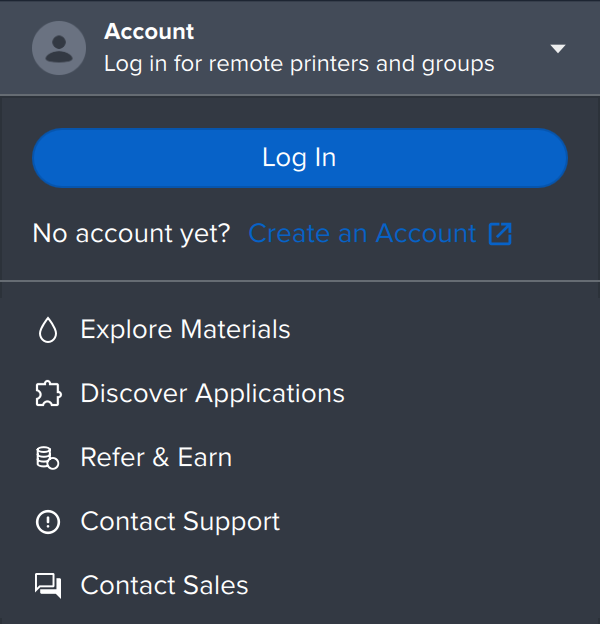
*The Account menu in PreForm.*
Pass the account to the client, and `connect(login=True)` logs PreForm in:
```python
import os
from formlabs_sdk import FormlabsClient
# The client holds the account, and connect(login=True) logs PreForm in to it.
with FormlabsClient(
username=os.environ["FORMLABS_USERNAME"],
password=os.environ["FORMLABS_PASSWORD"],
) as client:
# A rejected login raises PreFormApiError with the code LOGIN_FAILED, and
# PreForm keeps running, logged out.
with client.preform.connect(login=True) as preform:
user = preform.current_user()
print(f"Logged in as {user.username}")
```
The login lasts until PreForm exits or `logout()` ends it, and a new login replaces the
one before. Without `login=True`, `connect()` leaves the login as it is. To log in
later, call `preform.login()`. A rejected login raises `PreFormApiError` with the code
`LOGIN_FAILED`, and PreForm keeps running, logged out.
**Caution:** Before you replace the login of a PreForm someone else uses, check
`current_user()`.
## Call the PreForm API
Each endpoint has a method named after its operation. The following table maps
common PreForm actions to the methods that do the same work:
| In PreForm | Method |
| --- | --- |
| Choose printer, material, and layer thickness on the **Job Setup** screen | `create_scene`, `update_scene` |
| Open a `.form` file | `open_form_file` |
| Import an STL or CAD file | `import_models` |
| Orient, support, and lay out models automatically | `auto_orient_models`, `auto_support_models`, `auto_layout_models` |
| Save the build as a `.form` file | `save_form_file` |
| Send the job to a printer with **Print Now** or **Upload to Queue** | `print_scene` |
A long-running endpoint starts an operation, and the method returns when the
operation finishes. For more information, see [Operation](https://developer.formlabs.com/core-concepts/operation.md).
## Handle errors
A failed call raises `PreFormApiError`, which carries the error `code`, its
`message`, and the HTTP `status_code`:
```python
try:
preform.create_scene(
machine_type="FORM-4-0",
material_code="NOT-A-MATERIAL",
layer_thickness_mm=0.1,
)
except PreFormApiError as exc:
# code is the field to match on.
print(exc.code, exc.status_code, exc.message)
```
A scene setting that Formlabs doesn't ship fails with `INPUT_ERROR` and status `400`.
For more information about error codes, see [Errors](https://developer.formlabs.com/api-reference/schemas/errorcode.md).
## Blocking and async clients
`FormlabsClient` gives a blocking handle, and `AsyncFormlabsClient` gives an async one
with the same methods. In async code, await `connect()` and each method:
```python
async def main() -> None:
# A logged-out PreForm can still prepare a scene and save it, so the account
# is optional here.
async with AsyncFormlabsClient(
username=os.environ.get("FORMLABS_USERNAME"),
password=os.environ.get("FORMLABS_PASSWORD"),
) as client:
# Awaiting connect() returns once PreForm answers on port 44388. Leaving this
# with block leaves PreForm running.
async with await client.preform.connect() as preform:
```
The blocking client runs the async one on a private event-loop thread. The samples on
the Core concepts pages use the blocking client.
## What's next
- [Scene](https://developer.formlabs.com/core-concepts/scene.md)
- [API reference](https://developer.formlabs.com/api-reference.md)
# Scene
A *scene* is the server-side state of one build: a printer type, a material, a layer
thickness, a print setting, and the models placed in the printer's build volume. It's
the same thing you see in the PreForm window. Every PreForm API call that
changes a model names the scene it belongs to by its `scene_id`.
One PreForm process holds several scenes, so a script can prepare several builds in
one session. For example, a service bureau that receives orders in two materials
creates one scene per material and imports each order into the matching scene.
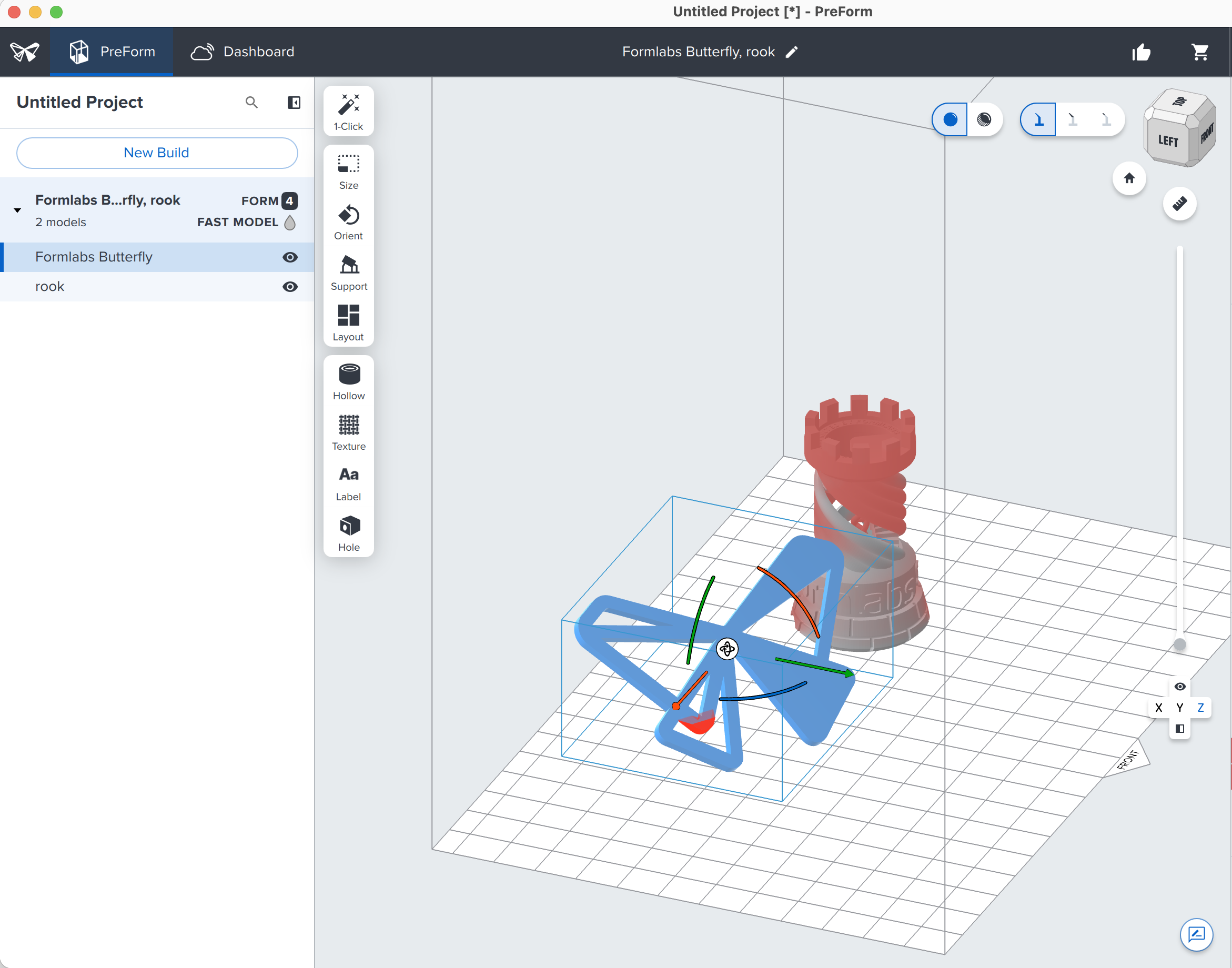
*A scene holds everything that prints in one build on one printer.*
## What a scene holds
A scene ties the models to the settings they print with:
```mermaid
flowchart LR
subgraph scene["Scene (scene_id)"]
settings["Scene settings: machine type, material, layer thickness, print setting"]
m1["Model"]
m2["Model"]
m3["Model"]
end
settings -. applies to .-> m1 & m2 & m3
scene -- "slice" --> job["Job"]
scene -- "save" --> form[".form file"]
```
- **Scene settings:** The machine type, such as `FORM-4-0`, the material code, such as
`FLGPGR05`, the layer thickness, and the print setting. Together they select one
print setting that Formlabs ships.
- **Models:** Each imported mesh, with its position, orientation, and supports. For
more information, see [Model](https://developer.formlabs.com/core-concepts/model.md).
- **Derived values:** The build volume, which comes from the machine type, and the
material usage and layer count, which PreForm recalculates as the models change.
For an example that prices a build from its material usage, see
[Instant quote](https://developer.formlabs.com/examples/instant-quote.md).
In PreForm, the **Summary** section of the side panel shows the derived values:
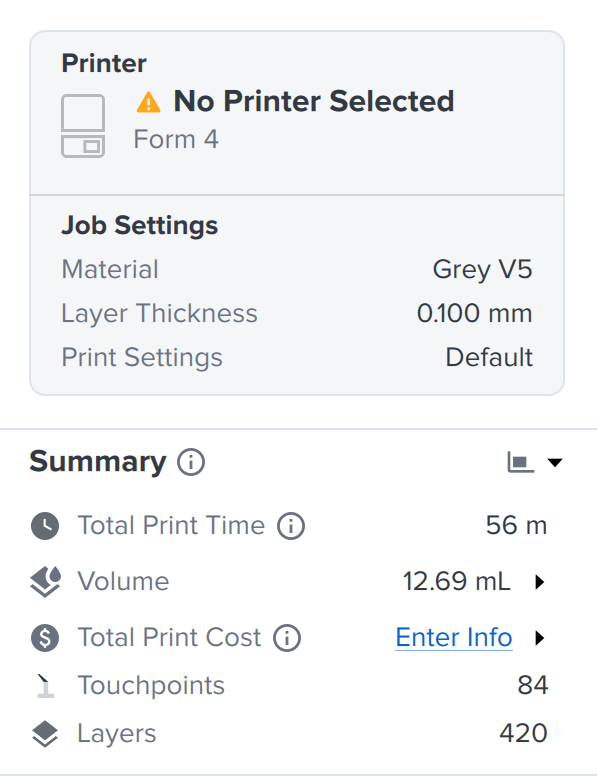
*The layer count and resin volume in **Summary** are the scene's `layer_count` and `material_usage`.*
In PreForm, the scene settings are the choices on the **Job Setup** screen:
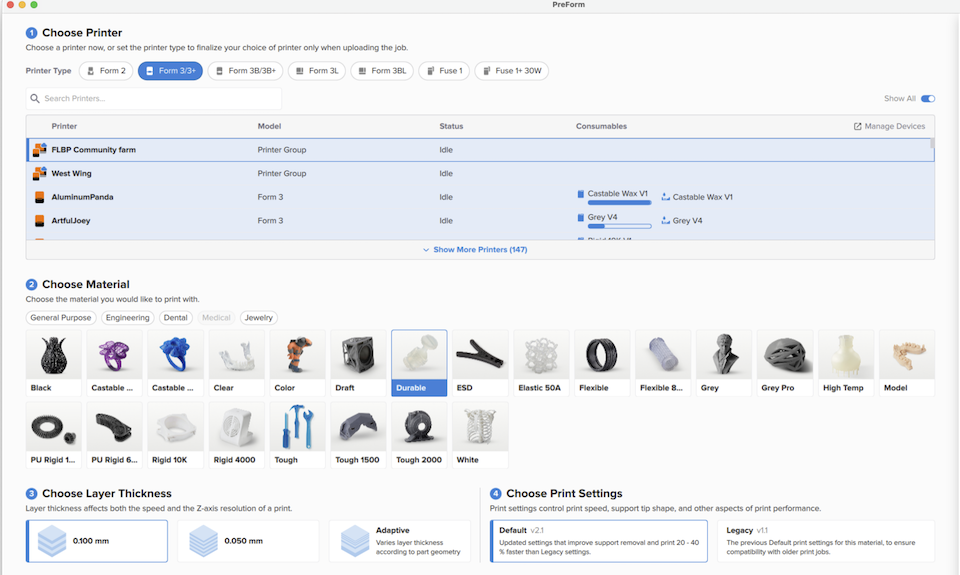
*The Job Setup screen in PreForm sets the same values as `create_scene`.*
For more information, see
[Introduction to the PreForm Print Settings Editor](https://formlabs.com/support/Introduction-to-the-Print-Settings-Editor/).
## Create a scene
The `create_scene` method takes the scene settings and returns the new scene:
**SDK:**
```python
# PreForm rejects a combination that Formlabs doesn't ship.
scene = preform.create_scene(
machine_type="FORM-4-0",
material_code="FLGPGR05",
layer_thickness_mm=0.1,
)
# create_scene answers with the new scene's id and settings; get_scene has the rest.
build_volume = preform.get_scene(scene_id=scene.scene_id).build_volume
print(scene.scene_id, build_volume.dimensions_mm)
```
**curl:**
**macOS:**
```bash
curl -X POST http://localhost:44388/v1/scene/create/ \
-H "Content-Type: application/json" \
-d '{"machine_type": "FORM-4-0", "material_code": "FLGPGR05",
"layer_thickness_mm": 0.1}'
```
**Windows:**
```powershell
@{ machine_type = "FORM-4-0"; material_code = "FLGPGR05"; layer_thickness_mm = 0.1 } |
ConvertTo-Json |
curl.exe -X POST http://localhost:44388/v1/scene/create/ `
-H "Content-Type: application/json" `
-d "@-"
```
The combination must be one that Formlabs ships, or PreForm rejects it. To find a
valid combination, see the
[Print Settings](https://developer.formlabs.com/api-reference/print-settings.md) endpoints.
## How long a scene lives
A scene lives in the memory of the PreForm process until you delete it:
```python
# Closing PreForm discards every scene. PreForm Server also keeps at most 30.
for listed in preform.list_scenes().scenes:
print(listed.id, len(listed.models))
preform.delete_scene(scene_id=scene.scene_id)
```
A freshly started PreForm holds one default scene. Deleting the default scene resets
it to an empty scene with the same settings, and deleting any other scene removes it.
PreForm Server keeps at most 30 scenes and deletes the least recently used one when a
new scene exceeds the limit. PreForm has its own limit on how many scenes exist at
once: when it's reached, `create_scene` fails with `BUILD_VOLUME_LIMIT_EXCEEDED`, and
you must delete a scene before you create another.
Closing PreForm discards every scene, so save a scene you need later as a `.form`
file. For more information, see the [Scenes](https://developer.formlabs.com/api-reference/scenes.md) endpoints.
## What's next
- [Print settings](https://developer.formlabs.com/core-concepts/print-settings.md)
- [Automatic layout settings for SLA printing](https://formlabs.com/support/Automatic-layout-settings-for-SLA-printing/)
# Print settings
A *print setting* holds the parameters a printer prints one material with, at one layer
thickness. Four values select one of the print settings Formlabs ships:
| Field | Meaning | Example |
| --- | --- | --- |
| `machine_type` | The printer type | `FORM-4-0`, the Form 4 and Form 4B |
| `material_code` | The material | `FLGPGR05`, Grey V5 |
| `layer_thickness_mm` | The layer thickness, in millimeters | `0.1` |
| `print_setting` | The setting variant for that material and thickness | `DEFAULT` |
A [scene](https://developer.formlabs.com/core-concepts/scene.md) carries one print setting for all its models, chosen on PreForm's
**Job Setup** screen, or with `create_scene`. A combination that isn't available in your PreForm instance is rejected. To select a print setting that is not shipped with PreForm you can [create or import a custom print setting in PreForm](#create-a-custom-setting-in-preform).
## List the print settings
The `list_print_settings` method returns every combination the running PreForm ships,
grouped by printer type and material:
```python
# Grouped by printer type, then material, then each material's variants.
catalog = preform.list_print_settings().to_dict()
for printer in catalog["printer_types"]:
for material in printer["materials"]:
for setting in material["material_settings"]:
# scene_settings is what create_scene takes.
print(printer["label"], material["label"], setting["label"],
setting["scene_settings"])
```
Each setting has a display `label`, such as `0.025 mm (Default settings)`, and its
`scene_settings` are the four fields `create_scene` takes. To list only what a connected printer accepts,
pass `compatible_with=` with the printer's serial name.
## List and check layer thicknesses
The `validate_print_setting` method answers which layer thicknesses a printer,
material, and print setting take, and whether one thickness works, without creating a
scene:
```python
# Without layer_thickness_mm, options lists every thickness the other three take.
thicknesses = preform.validate_print_setting(
machine_type="FORM-4-0", material_code="FLGPGR05", print_setting="DEFAULT"
)
if thicknesses.options:
print("Grey V5 on Form 4:", thicknesses.options.layer_thicknesses_mm)
# With all four, valid says whether that thickness prints.
check = preform.validate_print_setting(
machine_type="FORM-4-0",
material_code="FLGPGR05",
print_setting="DEFAULT",
layer_thickness_mm=0.05,
)
print("0.05 mm:", check.valid)
```
Leave out `layer_thickness_mm`, and `options.layer_thicknesses_mm` lists every
thickness Formlabs ships for the other three fields. Give all four, and `valid` says
whether that thickness is one of them. For a thickness with no print settings the result of the call is `false`.
## Create a custom setting in PreForm
A custom print setting starts as a copy of a Formlabs setting, which you change in
PreForm's Print Settings Editor:
1. In PreForm, click **Edit > Print Settings Editor**.
2. Click **New Print Setting**, choose the Formlabs setting to start from, and click
**Copy & Edit Selected**.
3. Change the parameters. To rename the setting, click the pencil icon next to its name.
4. To use the setting on another computer, click the **Export Print Setting** icon next
to it. PreForm saves it as an `.fps` file. In turn **Import FPS File** brings an `.fps` file
into your PreForm's print settings list.
For more details, see
[Using the PreForm Print Settings Editor](https://formlabs.com/support/Using-the-Print-Settings-Editor/).
## Use a custom setting
The `create_scene` and `update_scene` methods take an `.fps` file as `fps_file`, in
place of the four print setting selection fields:
```python
# FPS is a custom setting exported from PreForm's Print Settings Editor.
scene = preform.create_scene(fps_file=FPS)
print(preform.get_scene(scene_id=scene.scene_id).scene_settings)
```
## Export the print setting embedded into a .form file
A `.form` file someone prepared in PreForm prints with the setting they chose, custom or
not. When you build jobs from a script to match such a file, open it and save its
setting with the `save_print_setting` method:
```python
# Open a job someone prepared in PreForm, and save the setting it prints with.
job = preform.open_form_file(file=FORM).scenes[0]
print(preform.get_scene_metadata(scene_id=job.scene_id)["PrintSettingsName"])
saved = str(Path(f"{Path(FORM).stem}.fps").resolve())
preform.save_print_setting(scene_id=job.scene_id, file=saved)
# Scenes the script builds take the same setting from the file.
batch = preform.create_scene(fps_file=saved)
```
The saved `.fps` file holds the scene's setting with any changes made in that scene. To move a folder of saved jobs to another setting, see the
[Print setting rollout](https://developer.formlabs.com/examples/print-setting-rollout.md) example script. For each
field and error code, see the [Print Settings](https://developer.formlabs.com/api-reference/print-settings.md)
endpoints.
## What's next
- [Model](https://developer.formlabs.com/core-concepts/model.md)
- [Print setting rollout](https://developer.formlabs.com/examples/print-setting-rollout.md)
- [Using the PreForm Print Settings Editor](https://formlabs.com/support/Using-the-Print-Settings-Editor/)
# Model
A *model* is a mesh loaded into a scene. An STL file, an OBJ file, or a CAD file
becomes a model when you import it. The model carries everything the print needs from
that part: its geometry, its position and orientation on the build platform, and its
supports.
Each model is one entry in the **Model List** in PreForm. When a customer order
arrives as several STL files, each file becomes its own model, and the model's name
tells you which order it belongs to.
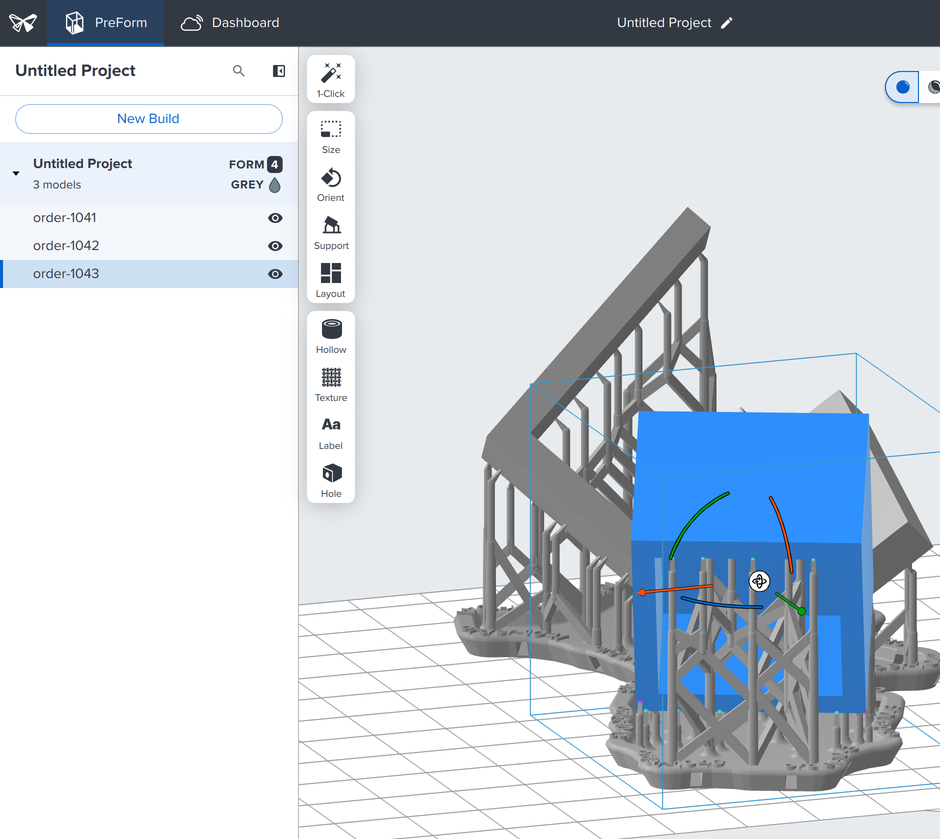
*Each row in the **Model List** is one model, and the row shows the model's `name`.*
## What a model holds
Each model in a scene has its own ID and properties:
| Property | Meaning |
| --- | --- |
| `id` | The model's ID within its scene |
| `name` | The name the **Model List** shows, derived from the filename unless you set one |
| `position`, `orientation`, `scale` | Where the model sits on the build platform, in millimeters and degrees |
| `units` | The units the file was interpreted in, such as `MILLIMETERS` |
| `bounding_box` | The model's extent in the scene, including its supports |
| `has_supports` | Whether the model has supports |
| `in_bounds` | Whether the model fits inside the build volume |
| `original_file` | The path of the file the model came from |
## Import a model
The `import_models` method loads a file into a scene and returns the models it
produced:
**SDK:**
```python
# PreForm reads the file itself, so PART is a full path on the machine that runs
# PreForm.
imported = preform.import_models(scene_id=scene.scene_id, file=PART)
# The import answers with the new models' ids; list_models has the rest. units is
# the unit the file was interpreted in, such as MILLIMETERS.
model_id = imported.new_models[0].model_id
model = preform.list_models(scene_id=scene.scene_id, model_ids=[model_id]).models[0]
print(model.id, model.name, model.units)
```
**curl:**
**macOS:**
```bash
curl -X POST http://localhost:44388/v1/scene/model/import/ \
-H "Content-Type: application/json" \
-d "{\"scene_id\": \"$SCENE_ID\", \"file\": \"$PWD/part.stl\"}"
```
**Windows:**
```powershell
@{ scene_id = $env:SCENE_ID; file = "$PWD\part.stl" } |
ConvertTo-Json |
curl.exe -X POST http://localhost:44388/v1/scene/model/import/ `
-H "Content-Type: application/json" `
-d "@-"
```
PreForm reads the file itself, so pass a full path on the machine that runs PreForm. A
CAD or 3MF file with several parts imports as one model unless you pass
`split_multi_model_file=True`. For more information, see the
[Scenes](https://developer.formlabs.com/api-reference/scenes.md) endpoints.
To label each model with an order number, pass `name=`. An STL file carries no units,
so PreForm reads it as millimeters. For a file a customer designed in inches, pass
`units=ImportUnits.INCHES`, from `formlabs_preform_api.models`.
The `import_models` method loads STL, OBJ, and 3MF mesh files, and CAD files in STEP,
SolidWorks, PTC Creo, JT, CATIA V5, Inventor, and Rhino formats. For more information,
see [Opening a model in PreForm](https://formlabs.com/support/Opening-a-model-in-PreForm/).
## Supports belong to the model
On SLA printers, a model prints on supports. Supports consist of three parts: the *raft*,
which adheres to the build platform; the *scaffolding*, which rises from the raft; and
the *touchpoints*, where the scaffolding meets the model:
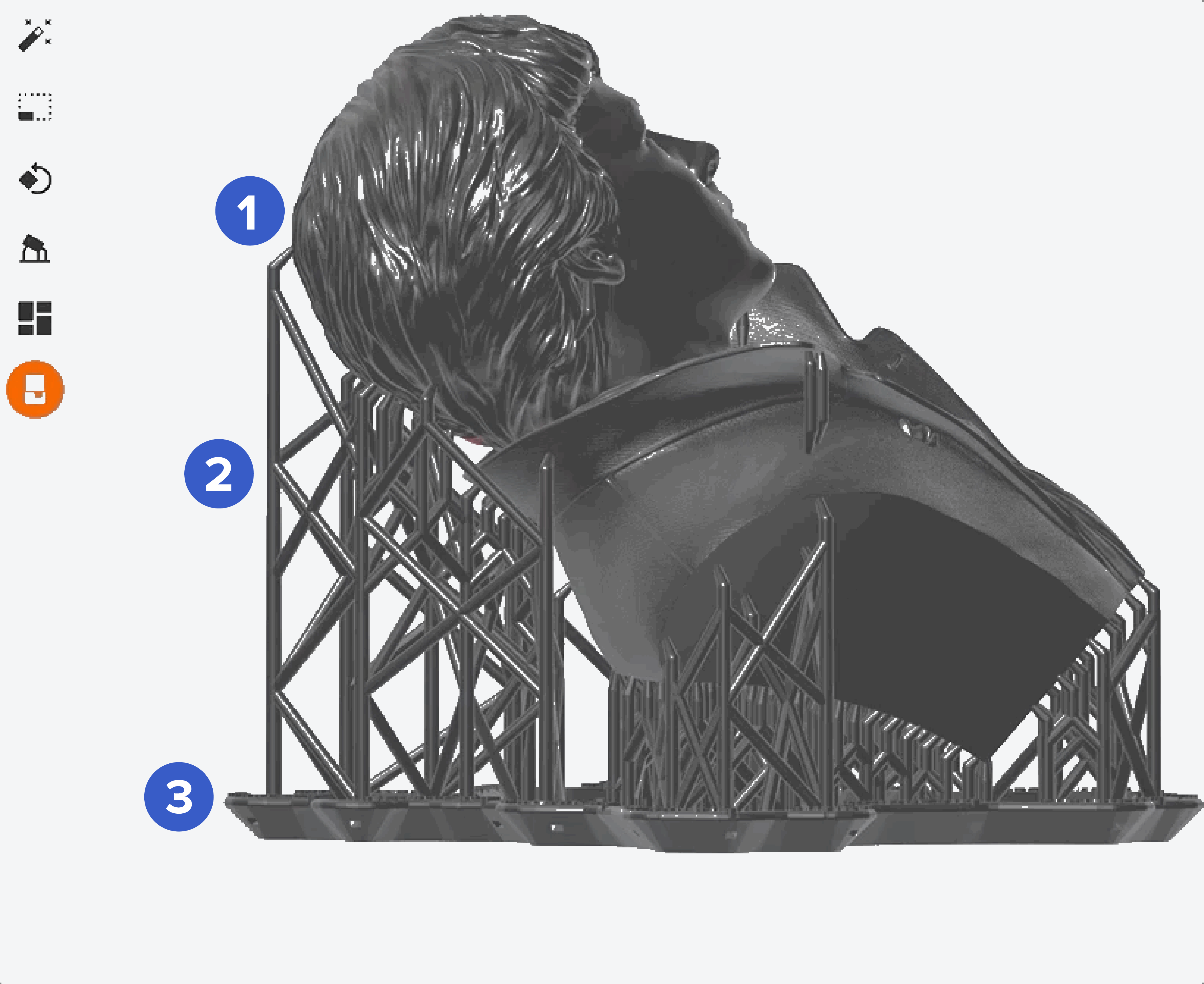
*Touchpoints (1), scaffolding (2), and the raft (3).*
The supports are part of the model, so they move with it, and its bounding box
includes them:
```python
preform.auto_support_models(scene_id=scene.scene_id, model_ids=[model.id])
# The supports belong to the model, so its bounding_box includes them.
for listed in preform.list_models(scene_id=scene.scene_id).models:
print(listed.name, listed.has_supports, listed.in_bounds, listed.bounding_box)
```
Orientation affects how much support a model needs, so orient a model before you
support it. For more information, see
[Model orientation best practices for SLA printing](https://formlabs.com/support/Model-Orientation/)
and [How supports work in SLA printing](https://formlabs.com/support/How-supports-work-in-SLA-printing/).
## What's next
- [Validate](https://developer.formlabs.com/core-concepts/validate.md)
# Validate
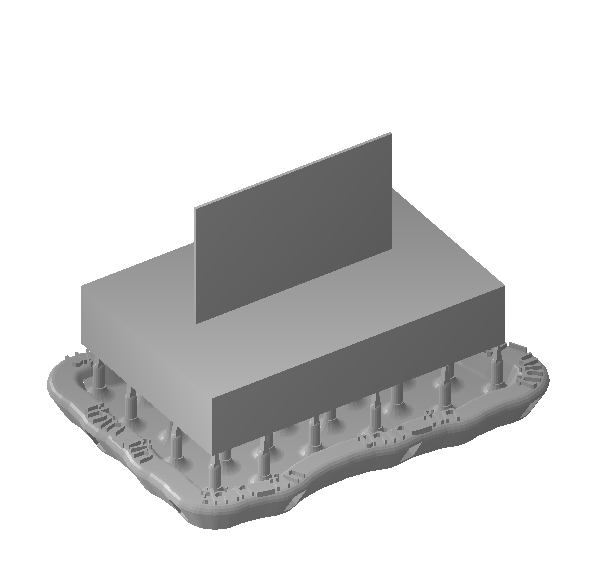
The *printability checks* report, per model, whether a scene will print as it is: a
hole in the mesh, a wall too thin, a cup that traps resin during printing, a minima the
supports miss, or a model outside the build volume. Each check reads the scene and returns the results for each model on the scene.
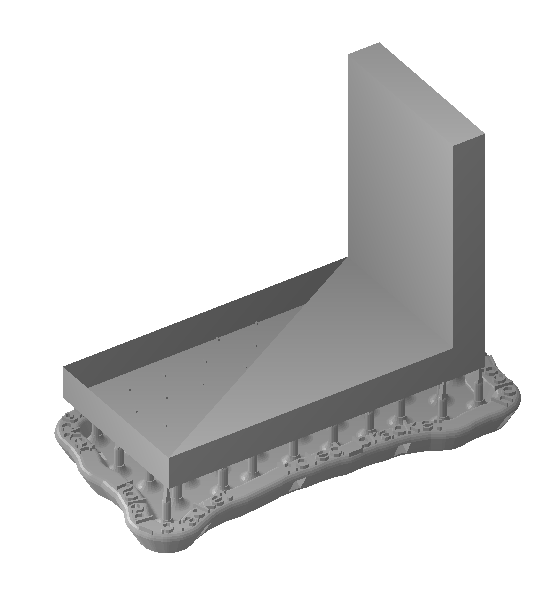
## How a check runs
You call a check on a scene, PreForm analyzes its models, and the answer holds one
result per model, keyed by model ID, under `per_model_results`. For example a cup check on a scene with
two models will return:
```json
{
"per_model_results": {
"c2a37eb2-8e4b-4b8e-9f37-1f5f2c1a9d10": { "cup_count": 0 },
"9b1dd8a0-4f6e-45c2-9a3e-77a01f2b6c55": { "cup_count": 2 }
}
}
```
After running a check you can also check the status of the validation on a model by checking the model properties such as `model.cup_count`
Similar to PreForm, the results are invalidated after you move, reorient, or support a model, to get the validation results you have to run the check again.
## Mesh checks
The manifold and thin-wall checks only look at the mesh, so you can run them right after
you import a model:
```python
# Each check answers per model: per_model_results maps a model ID to its result.
manifold = preform.validate_manifoldness(scene_id=scene.scene_id)
for model_id, result in manifold.per_model_results.additional_properties.items():
if not result.is_manifold:
print(f"{model_id} has holes: {result.status}")
thin = preform.validate_thin_features(scene_id=scene.scene_id, threshold_mm=0.5)
for model_id, result in thin.per_model_results.additional_properties.items():
if result.has_thin_walls:
print(f"{model_id}: {result.thin_region_count} region(s) under 0.5 mm")
```
The example imports the model with `repair_behavior=RepairBehavior.IGNORE`, so a mesh
with holes is imported as it is and the manifold check can find the holes. To fix a model that isn't manifold, call
`repair_models`. Hollowing and drilling only work on manifold models.
Set `threshold_mm` to the thinnest wall your material can print at your layer thickness.
If the thin-wall check can't analyze a model, for example because the mesh has holes,
the model's `status` is not `ANALYZED`.
## Orientation and support checks
Cups depend on how a model is oriented, and unsupported minima and undersupported areas
depend on its supports. Run these checks after you orient and support your models:
```python
preform.auto_orient_models(scene_id=scene.scene_id)
preform.auto_support_models(scene_id=scene.scene_id)
preform.auto_layout_models(scene_id=scene.scene_id)
# The cup, minima and supportedness checks always analyze the whole scene.
cups = preform.validate_cups(scene_id=scene.scene_id)
minima = preform.validate_minima(scene_id=scene.scene_id)
supported = preform.validate_supportedness(scene_id=scene.scene_id)
for model_id, result in cups.per_model_results.additional_properties.items():
print(model_id, "cups:", result.cup_count)
for model_id, result in minima.per_model_results.additional_properties.items():
print(model_id, "unsupported minima:", result.minima_count)
for model_id, result in supported.per_model_results.additional_properties.items():
print(model_id, f"{result.percent_unsupported:.1f}% undersupported")
```
These checks always run on every printable model in the scene, and they can take tens
of seconds. The SDK runs them as an [operation](https://developer.formlabs.com/core-concepts/operation.md) and waits for the result.
The cup and minima checks fail with `OPERATION_FAILED` if a model is outside the build
volume, so lay out your models before you run them.
To fix a model with cups, reorient it or add drain holes. To fix unsupported minima or
undersupported areas, generate the supports again or increase their density.
## Fit and collision checks
The fit and collision checks look at the models where they are on the build platform:
```python
# Read the scene as it stands: nothing is moved to make a model fit.
fits = preform.validate_in_bounds(scene_id=scene.scene_id)
collisions = preform.validate_interferences(scene_id=scene.scene_id)
print(fits.to_dict())
print("colliding pairs:", collisions.model_ids)
```
The fit check includes the supports. A model that sticks out of the build volume is
reported as `in_bounds: false`, even if it would fit in another orientation. Adding
supports can also push a model out of bounds. If you move, scale, or reorient models
yourself, they can overlap. The collision check returns each pair of overlapping
models.
## The checks
| Check | Method | Result per model | Run it after |
| --- | --- | --- | --- |
| Manifold | `validate_manifoldness` | `is_manifold` | Import |
| Thin walls | `validate_thin_features` | `has_thin_walls`, `thin_region_count`, `thin_volume_mm3` | Import |
| Cups | `validate_cups` | `cup_count` | Orientation |
| Unsupported minima | `validate_minima` | `minima_count` | Supports |
| Undersupported area | `validate_supportedness` | `percent_unsupported`, 0 to 100 | Supports |
| Fit | `validate_in_bounds` | `in_bounds` | Layout |
| Collisions | `validate_interferences` | Pairs of overlapping models, in `model_ids` | Layout |
To check only some models, pass `model_ids` to the manifold, thin-wall, or fit check.
For the fields and error codes of each check, see the
[Printability Checks](https://developer.formlabs.com/api-reference/printability-checks.md) endpoints. For a script
that checks every part in an order, see
[Printability report](https://developer.formlabs.com/examples/printability-report.md).
## What's next
- [Job](https://developer.formlabs.com/core-concepts/job.md)
- [Printability report](https://developer.formlabs.com/examples/printability-report.md)
- [Model orientation best practices for SLA printing](https://formlabs.com/support/Model-Orientation/)
# Job
A *job*, or *print job*, is what a printer runs. PreForm creates a job from a
scene by slicing the scene into layers, the same step that runs when you click
**Print Now** or **Upload to Queue** in PreForm. The job carries the layers, the
scene's print settings, and a name that operators see on the printer and in Dashboard.
## From scene to job
A scene stays in PreForm, and you can keep changing it. A job is a copy of the
scene at the moment it's sliced:
```mermaid
flowchart LR
scene["Scene models and settings"] -- "slice" --> job["Job layers, print settings, job name"]
job --> pq["Printer queue"]
job --> gq["Group queue (Dashboard)"]
```
Changes to the scene after slicing don't reach a job that already exists. To print the
changed scene, create a new job from it.
Prepare the models before you create a job: orient them, support them, and place them
on the build platform. For more information, see [Model](https://developer.formlabs.com/core-concepts/model.md).
## Send a job to a printer
The `print_scene` method slices the scene into a job and uploads the job in one step:
```python
# print_now=False puts the print job in the printer's queue without
# starting it.
job = preform.print_scene(
scene_id=scene.scene_id,
printer=PRINTER,
job_name="bracket",
print_now=False,
)
print(f"Print job {job.job_id}")
```
The `printer` field takes a printer's serial name or IP address, or the queue ID of a
Printer Group. The `print_now` field picks between the two print buttons in PreForm:
- **`print_now=False`:** **Upload to Queue**. The job waits in the printer's queue until
an operator starts it on the touchscreen.
- **`print_now=True`:** **Print Now**. The job starts immediately, and the call fails
when the printer isn't ready to print.
**Caution:** Omitting `print_now` defers to the printer's `ready_to_print_now` flag, so
the job starts immediately on a printer that is ready. Pass `print_now=False` when an
operator checks the build platform and resin tank before each print.
The `job_name` field is the name an operator sees on the printer and in Dashboard.
An order number or a batch ID in the name lets the operator match a finished build to
its orders.
For more information, see [Queue](https://developer.formlabs.com/core-concepts/queue.md).
## Keep the scene for later
To print the scene again later, or to change it first, save it as a `.form` file with
`save_form_file`. A `.form` file holds the models and settings, and it opens in
PreForm. For more information, see [Scene](https://developer.formlabs.com/core-concepts/scene.md).
## What's next
- [Operation](https://developer.formlabs.com/core-concepts/operation.md)
- [Create your first script](https://developer.formlabs.com/getting-started/quickstart.md)
- [Sending a print job from PreForm to a printer](https://formlabs.com/support/Sending-a-print-job-from-PreForm-to-a-printer/)
- [Starting a print job on the printer touchscreen](https://formlabs.com/support/Starting-a-print-job-on-the-printer-touchscreen/)
# Operation
An *operation* is a long-running PreForm API request that runs in the
background in PreForm. Importing, orienting, supporting, laying out, slicing,
and printing are the steps you wait on in the PreForm window, and they can take
seconds to minutes. PreForm accepts the request, returns an operation ID, and reports
progress until the work finishes.
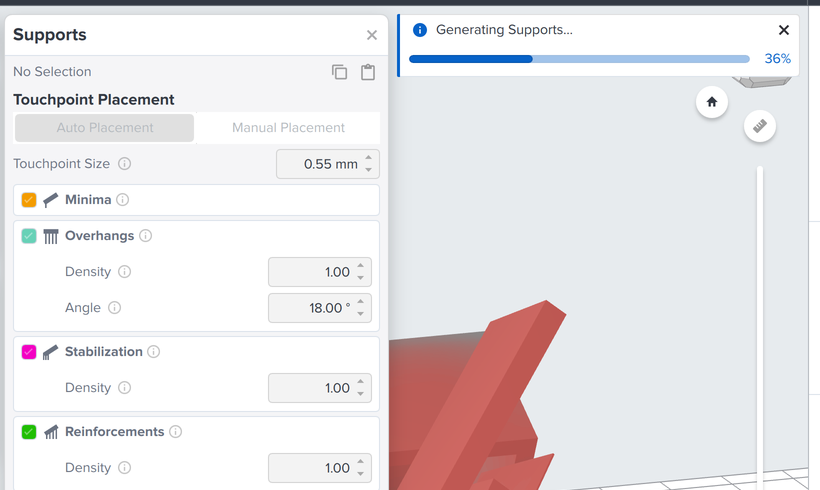
*In PreForm, a progress bar tracks support generation. Through the API, an operation reports its `progress`.*
## How an operation runs
A request with `async=true` starts an operation, and the client polls it until it
succeeds or fails:
```mermaid
sequenceDiagram
participant C as Your code
participant S as PreForm
C->>S: POST /v1/scene/model/auto-support/?async=true
S-->>C: 202 Accepted, operation_id
loop Until status is SUCCEEDED or FAILED
C->>S: GET /v1/operation/get/?operation_id=...
S-->>C: status IN_PROGRESS, progress 0 to 1
end
S-->>C: status SUCCEEDED, result
```
An operation's `status` is `IN_PROGRESS` while it runs, then `SUCCEEDED` or `FAILED`.
Its `progress` value rises from 0 to 1. After it succeeds, `result` holds what the endpoint
returns when you call it without `async=true`.
## Wait for an operation
The SDK starts every long-running call as an operation and polls it for you, so a
blocking call returns when the work is done:
**SDK:**
```python
# The blocking call polls the operation until it succeeds or fails.
try:
preform.auto_support_models(
scene_id=scene.scene_id,
timeout=300,
# Called each time the progress, from 0 to 1, increases.
on_progress=lambda p: print(f"Supports {p:.0%}"),
)
except TimeoutError:
# The PreForm API can't cancel an operation, so it keeps running.
print("Still running in PreForm after 300 seconds")
```
**curl:**
**macOS:**
```bash
curl -X POST "http://localhost:44388/v1/scene/model/auto-support/?async=true" \
-H "Content-Type: application/json" \
-d "{\"scene_id\": \"$SCENE_ID\"}"
curl "http://localhost:44388/v1/operation/get/?operation_id=$OPERATION_ID"
```
**Windows:**
```powershell
@{ scene_id = $env:SCENE_ID } |
ConvertTo-Json |
curl.exe -X POST "http://localhost:44388/v1/scene/model/auto-support/?async=true" `
-H "Content-Type: application/json" `
-d "@-"
curl.exe "http://localhost:44388/v1/operation/get/?operation_id=$env:OPERATION_ID"
```
The `on_progress` callback receives the progress each time it increases. A call that
runs past `timeout` raises `TimeoutError`, and the operation keeps running in
PreForm, because the PreForm API has no endpoint that cancels an operation.
**Caution:** Don't retry a timed-out call on the same scene while the first operation
still runs. The PreForm API reference states that parallel requests that change one
scene overwrite each other, and the last write wins silently.
## What an operation doesn't cover
An operation lives only as long as the PreForm process, and a restarted PreForm
holds no operations. A print job that PreForm has uploaded is no longer an
operation: the printer and its queue track it from then on. For more information, see
[Queue](https://developer.formlabs.com/core-concepts/queue.md).
## What's next
- [Device](https://developer.formlabs.com/core-concepts/device.md)
# Dashboard client
A *Dashboard client* calls the Formlabs Web API, the API behind Dashboard, at
`https://api.formlabs.com/developer/v1/`. It reads the same printers, print history,
Printer Groups, and group queues that Dashboard shows, so a script can build a usage
report across every printer on the account.
The SDK has no methods for the Formlabs Web API endpoints, so the client has two
parts. A `FormlabsClient` with developer credentials supplies the token, and an HTTP
client sends the requests. To send a print job to a group queue, as **Upload to Queue**
does, use the PreForm client. For more information, see [PreForm client](https://developer.formlabs.com/core-concepts/preform-client.md).
## What each part does
The two parts split the work:
- **`FormlabsClient`:** Holds the client ID and client secret, requests the developer
token, caches it, and requests a new one 300 seconds before it expires. Closing the
client revokes the token.
- **HTTP client:** Sends each request with the token in the `Authorization` header.
The examples on this page use `httpx`, which the SDK installs.
To create the client ID and client secret in Dashboard, see
[Install the Developer Kit](https://developer.formlabs.com/getting-started/install.md#connect-to-dashboard).
## Attach the token to each request
An `httpx.Auth` class asks the session for the token on every request, so a refreshed
token reaches the next request:
```python
class DeveloperTokenAuth(httpx.Auth):
"""Adds the developer token to each request, and retries once after a 401."""
def __init__(self, session):
self.session = session
def auth_flow(self, request):
# The session returns its cached token until 300 seconds before it expires.
request.headers["Authorization"] = f"Bearer {self.session.developer_token()}"
response = yield request
if response.status_code == 401:
# The server revoked the token. Drop it so the session mints a new one.
self.session.invalidate(TokenKind.DEVELOPER)
token = self.session.developer_token()
request.headers["Authorization"] = f"Bearer {token}"
yield request
```
A `401` response means the server rejected a token the session considers valid, for
example after the token was revoked. The `invalidate` method drops the cached token,
and the retry carries a new one.
## Create the client
The HTTP client takes the Formlabs Web API base URL and the auth class:
```python
credentials = FormlabsCredentials(
client_id=os.environ["FORMLABS_CLIENT_ID"],
client_secret=os.environ["FORMLABS_CLIENT_SECRET"],
)
with FormlabsClient(credentials=credentials) as client:
# Closing the client revokes the developer token, so every request runs inside
# this with block.
with httpx.Client(
base_url="https://api.formlabs.com/developer/v1/",
auth=DeveloperTokenAuth(client.auth),
) as dashboard:
```
Creating `FormlabsClient` makes no network request. A rejected client ID or secret
raises `InvalidCredentialsError` on the first request, when the session requests the
token.
## Send a request
Paths are relative to the base URL:
```python
response = dashboard.get("printers/")
response.raise_for_status()
for printer in response.json():
print(printer["serial"])
```
The `printers/` endpoint returns every printer on the account. Some list endpoints
wrap their items in an envelope with `count` and `results`. For more information, see the
[Formlabs Web API reference](https://formlabs-dashboard-api-resources.s3.amazonaws.com/formlabs-web-api-latest.html).
## What the Formlabs Web API covers
The Formlabs Web API reads and manages what Dashboard shows:
| Area | Paths |
| --- | --- |
| Printers | `printers/`, `printers/{printer_serial}/` |
| Print history | `prints/`, `printers/{printer_serial}/prints/` |
| Printer Groups and group queues | `groups/`, `groups/{group_id}/members/`, `groups/{group_id}/queue/` |
| Consumables | `cartridges/`, `tanks/` |
| Events | `events/` |
For every endpoint, see the
[Formlabs Web API reference](https://formlabs-dashboard-api-resources.s3.amazonaws.com/formlabs-web-api-latest.html).
## What's next
- [Scene](https://developer.formlabs.com/core-concepts/scene.md)
# Device
A *device* is a printer, or a Printer Group, that a print job can go to. Each printer
is identified by its *serial name*, such as `Form4-ExampleDevice`, in every Formlabs API.
PreForm lists both the printers on its local network and Dashboard printers/Printer
Groups (if logged in to a Formlabs account).
## How printers connect
PreForm and PreForm Server reach printers on the local network. Printers reach
Formlabs servers over the internet for Dashboard, remote printing, and firmware updates:
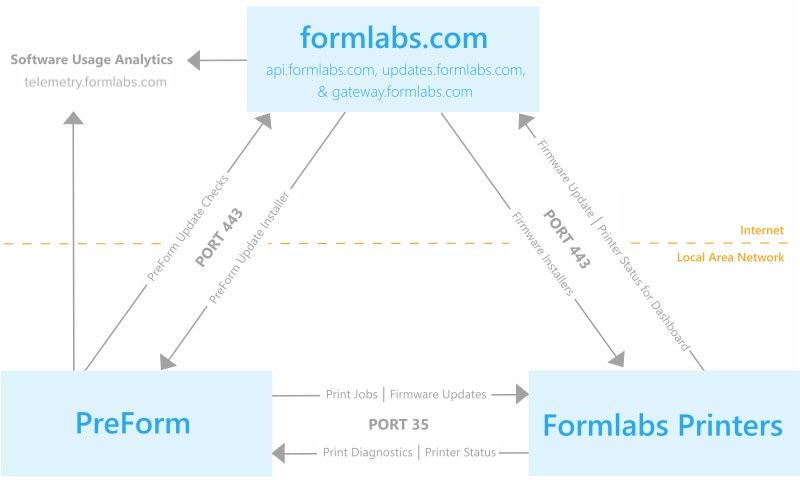
*Connections between PreForm, printers, and Formlabs servers.*
A printer connects over USB, over a local network with no internet access, or over an
internet-connected local network. Remote printing and Dashboard need the printer on the
internet. For more information, see
[Connectivity and security](https://formlabs.com/support/Connectivity-and-Security/).
## List devices with the PreForm API
The `list_devices` method returns the same printers and Printer Groups that the
printer list on the PreForm **Job Setup** screen shows:
**SDK:**
```python
# Disconnected devices aren't listed.
for device in preform.list_devices().devices:
print(device.id, device.product_name, device.status, device.ready_to_print_now)
```
**curl:**
**macOS:**
```bash
curl http://localhost:44388/v1/device/list/
```
**Windows:**
```powershell
curl.exe http://localhost:44388/v1/device/list/
```
Each record carries the device's `id`, its `product_name`, its `status`, and its
`ready_to_print_now` flag. A printer record also carries the `tank_material_code` of
the loaded resin tank, so code that routes orders across a fleet can pick a printer
that already has the right material. Disconnected devices aren't listed.
To search the network first, call the `discover_devices` method. For more information, see
[Manually adding a printer to PreForm](https://formlabs.com/support/Manually-adding-a-printer-to-PreForm/).
## What's next
- [Group](https://developer.formlabs.com/core-concepts/group.md)
- [Connectivity and security](https://formlabs.com/support/Connectivity-and-Security/)
# Group
A *Printer Group* is a set of printers in a Dashboard account, organized by location or
purpose, such as one print room or one team's printers. Fleet Control gives each group a
group queue, so a print job sent to the group goes to whichever printer in it is ready
first. The group also controls who can see and use its printers.
## How a group fits in
A group sits between Dashboard and the printers registered to the account:
```mermaid
flowchart TB
account["Dashboard account"] --> g1["Printer Group"]
account --> g2["Printer Group"]
g1 --> q1["Group queue"]
g1 --> p1["Printer"] & p2["Printer"]
g2 --> q2["Group queue"]
g2 --> p3["Printer"]
q1 -. "next print job" .-> p1 & p2
q2 -. "next print job" .-> p3
```
- **Printers:** A printer is registered to one Dashboard account, and an admin places
it in a group.
- **Members:** A group has *admins* and *members*. An admin invites people by email,
renames the group, and moves printers between groups.
- **Group queue:** The print jobs sent to the group, waiting for a printer to be ready. For more information, see [Queue](https://developer.formlabs.com/core-concepts/queue.md).
## Create a group
An admin creates and manages groups in Dashboard. To create a group:
1. Under **Printers**, click **Organize Printers**.
2. Click **+ New Printer Group**.
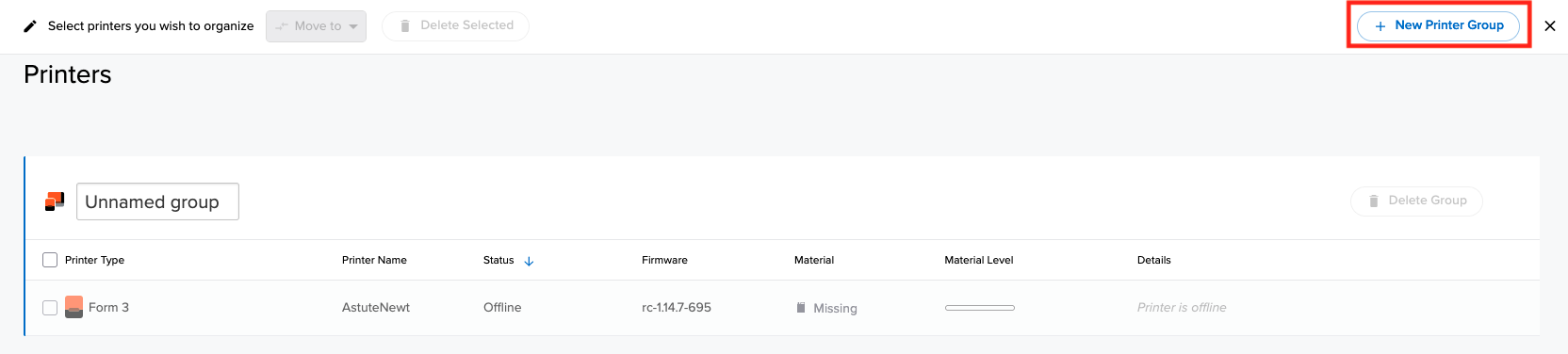
*Creating a Printer Group in Dashboard.*
The person who creates a group becomes its admin. To add a printer to Dashboard, enter
the registration code from the printer's touchscreen. For more information, see
[Managing a Printer Group with Dashboard](https://formlabs.com/support/Managing-a-Printer-Group-with-Dashboard/)
and [Adding and removing printers on Dashboard](https://formlabs.com/support/Adding-and-removing-printers-on-Dashboard/).
## Find a group from your code
After PreForm logs in to the account, the printer list on the **Job Setup** screen shows
each Printer Group with the model **Printer Group**:
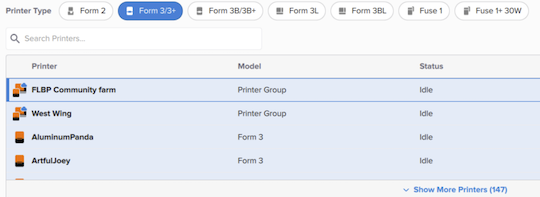
*Printer Groups in the PreForm printer list.*
The device list in the PreForm API holds the same groups, each with its queue ID and the
printer types in it:
```python
import os
from formlabs_sdk import FormlabsClient
with FormlabsClient(
username=os.environ["FORMLABS_USERNAME"],
password=os.environ["FORMLABS_PASSWORD"],
) as client:
# login=True logs PreForm in with the client's credentials. PreForm lists Printer
# Groups only while it's logged in to the account.
with client.preform.connect(login=True) as preform:
for device in preform.list_devices().devices:
# Only a Printer Group record carries a dashboard_queue_id.
if hasattr(device, "dashboard_queue_id"):
queue_id = device.dashboard_queue_id
print(device.id, queue_id, device.supported_machine_type_ids)
```
The `dashboard_queue_id` field is the value that the `print_scene` method takes as its
`printer` ID to send a print job to the group. The `supported_machine_type_ids` field
lists the printer types in the group, so create the scene with one of them.
The Formlabs Web API lists, creates, and manages groups and their members. For more
information, see the
[Formlabs Web API reference](https://formlabs-dashboard-api-resources.s3.amazonaws.com/formlabs-web-api-latest.html).
## What's next
- [Queue](https://developer.formlabs.com/core-concepts/queue.md)
- [Dashboard overview and setup](https://formlabs.com/support/Dashboard-Overview-and-Setup/)
# Queue
A *queue* holds print jobs until a printer starts them. Each printer has its own
queue, which holds the print jobs uploaded to it. Each Printer Group also has a *group
queue*, the Fleet Control queue in Dashboard, which holds the print jobs sent to the group
until a printer in the group is ready.
## How a print job moves through the queues
A print job goes to one printer's queue, or to a group queue that hands it to the
first ready printer:
```mermaid
flowchart LR
code["print_scene"] -- "printer: serial name" --> pq["Printer queue"]
code -- "printer: queue ID" --> gq["Group queue (Dashboard)"]
gq -- "a printer is ready" --> pq2["Printer in the group"]
pq --> start["Operator starts the print job"]
pq2 --> start
```
## Queue a print job on a printer
The `print_scene` method with `print_now=False` does what **Upload to Queue** does in
PreForm: it uploads the print job to the printer's own queue. An operator starts it on the
printer's touchscreen when the build platform is ready. For more information, see
[Starting a print job on the printer touchscreen](https://formlabs.com/support/Starting-a-print-job-on-the-printer-touchscreen/).
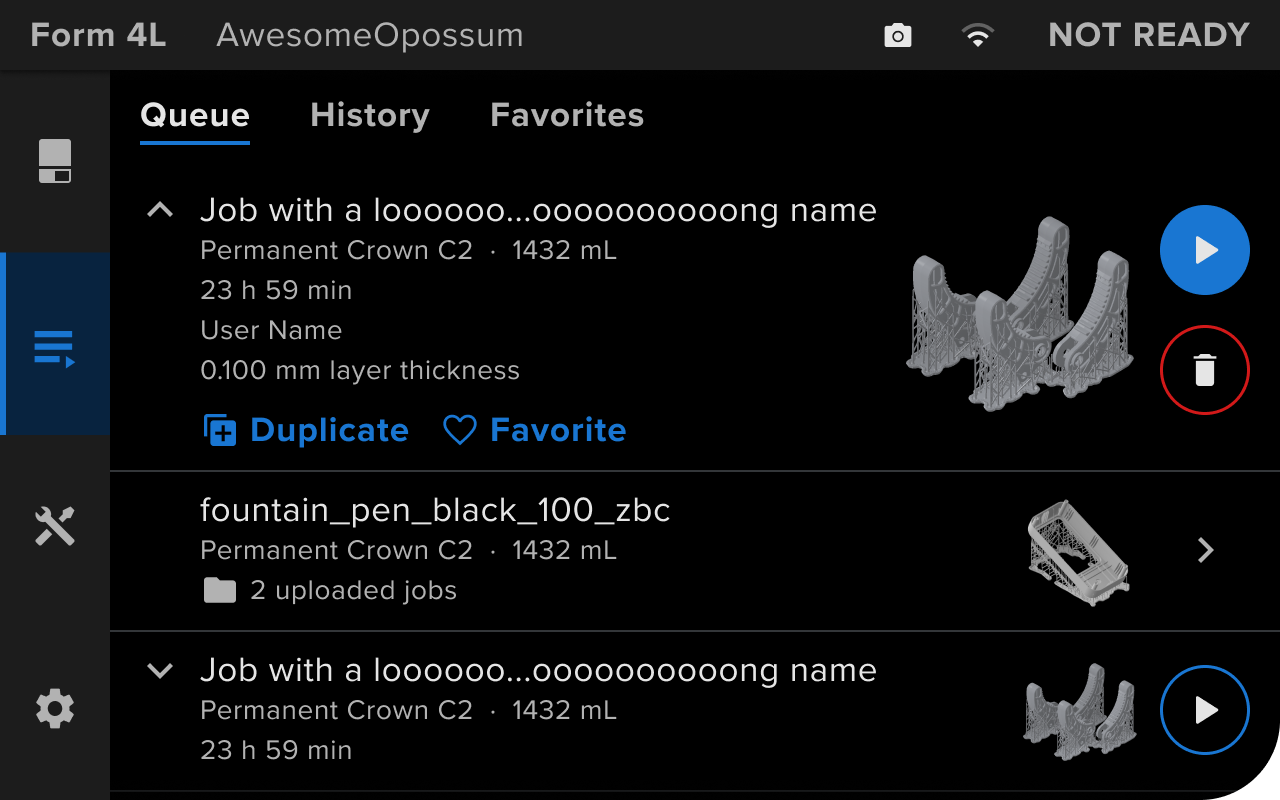
*The printer's own queue on a Form 4L touchscreen.*
## Send a print job to a group queue
To send a print job to a Printer Group, pass the group's queue ID as the `printer`. The
queue ID is the `dashboard_queue_id` field in the group's device record, and PreForm must
be logged in to the account that owns the group:
```python
# A queue ID as the printer sends the print job to the group queue.
job = preform.print_scene(
scene_id=scene.scene_id,
printer=QUEUE_ID,
job_name="bracket",
)
```
A group queue can't start a print job immediately, so `print_now=True` fails with
`OPERATION_FAILED`. When PreForm can't find the queue within
`find_printer_timeout_seconds`, 30 seconds by default, the operation fails with the same
error. For more information, see [Group](https://developer.formlabs.com/core-concepts/group.md).
## How a group queue picks a printer
Dashboard sends the next print job to a printer in the group when that printer is
ready to print with the right consumables. Until one is, the print job waits in the
queue. In Dashboard, an operator reorders, duplicates, and deletes queued print jobs:

*Reordering a group queue in Dashboard.*
A printer takes print jobs from the group queue only with remote printing turned on:
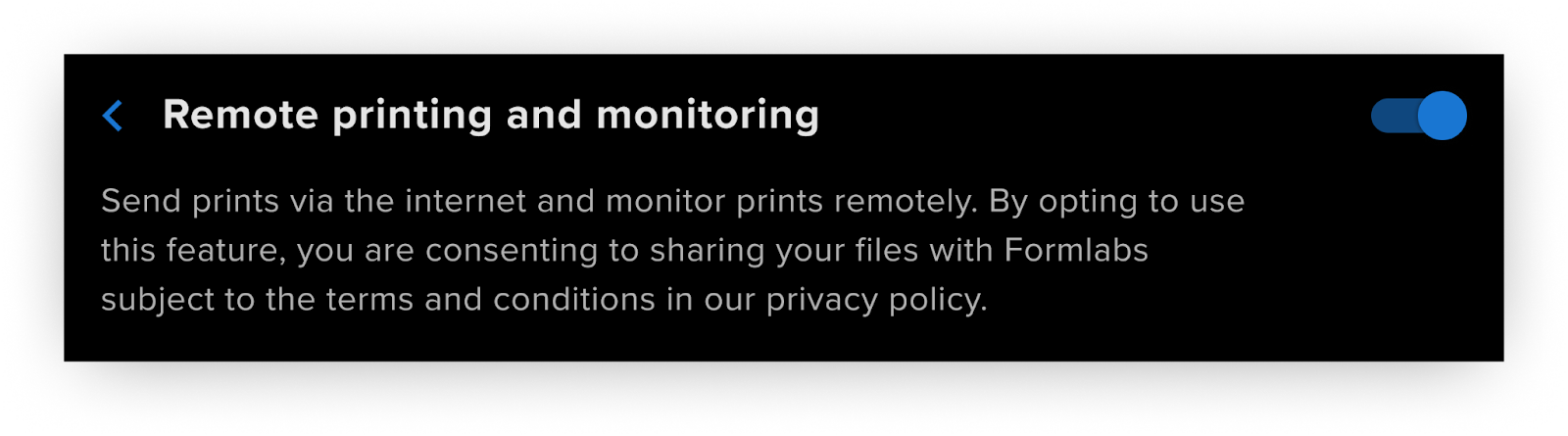
*The remote printing setting on a Form 4.*
For more information, see
[Using Group Queues in Dashboard](https://formlabs.com/support/Using-Group-Queues-in-Dashboard/).
## What's next
- [Tracking print progress with Dashboard](https://formlabs.com/support/Tracking-Print-Progress-with-Dashboard/)
# Headless PreForm Server
PreForm Server is PreForm without its user interface. It serves the same PreForm API, so a
script written against PreForm runs unchanged against PreForm Server. Use it where no
one watches the screen, such as a computer that prepares each incoming order as it
arrives, or an application that runs as a service.
Most scripts don't need PreForm Server: get started [by connecting to the PreForm window](https://developer.formlabs.com/getting-started/install.md#connect-to-a-running-preform)
you already have open.
## Download PreForm Server
PreForm Server is distributed separately from PreForm. Download the build for macOS
or Windows from
[Formlabs API downloads and release notes](https://formlabs.com/support/Formlabs-API-downloads-and-release-notes?language=en_US).
The SDK starts the server from the path of its executable. On macOS, that's the
executable inside the app bundle, because the `.app` folder itself isn't an
executable.
## Start PreForm Server from Python
To check the setup, start the server, print its version, and shut it down:
```python
import os
from formlabs_sdk import FormlabsClient
# On macOS, set PREFORM to the executable inside PreFormServer.app.
PREFORM = os.environ.get("PREFORM", "PreFormServer.exe")
with FormlabsClient() as client:
# launch() waits up to 60 seconds for the server to start. Leaving the with block
# shuts the server down.
with client.preform.launch(PREFORM) as preform:
print(f"PreForm Server {preform.version} at {preform.base_url}")
```
The script prints the server version and `http://localhost:44388`. The `launch()`
method fails with `PORT_IN_USE` when another server already listens on port 44388. To
use another port, pass the `port` argument.
The SDK owns a server that `launch()` starts: leaving the `with` block shuts it down.
`launch()` also logs the server in with the client's account, when the client has
one. Every other call is the same as against PreForm, so a script from
[Create your first script](https://developer.formlabs.com/getting-started/quickstart.md) runs headless once `connect()` is
replaced with `launch()` and the path of the PreForm Server executable.
## Start PreForm Server from a terminal
PreForm Server also runs on its own. The `--port` argument is required:
**macOS:**
```bash
/Applications/PreFormServer.app/Contents/MacOS/PreFormServer --port 44388
```
**Windows:**
```powershell
C:\PreFormServer\PreFormServer.exe --port 44388
```
The server prints `READY FOR INPUT` after it starts accepting requests. A script then
attaches with the `connect()` method, exactly as it does to PreForm, and closing the
client leaves the server running. The `connect()` method leaves the server's login as
it is, so a server started this way stays logged out until it's logged in. For more
information, see [Log PreForm in](https://developer.formlabs.com/core-concepts/preform-client.md#log-preform-in).
For the other options, see [CLI & command-line options](https://developer.formlabs.com/resources/preform-server-cli.md).
## What's next
- [PreForm client](https://developer.formlabs.com/core-concepts/preform-client.md)
# Examples
Examples are provided for common use cases of the Formlabs Python SDK. Such as creating a report from a finished build to post-processing and billing or packing SLS jobs from a browser application.
## Example code
Scripts that do one task from the command line and write a file you can use.
**[Printability Report](https://developer.formlabs.com/examples/printability-report.md)**
Grade a folder of STL files PASS, WARN, or FAIL for printing, with the checks
behind each grade and a picture of each part that didn't pass.
**[Instant quote](https://developer.formlabs.com/examples/instant-quote.md)**
Quote a price for a part in each material on a price list, with the print time
and the resin including supports.
**[Dental presets](https://developer.formlabs.com/examples/dental-presets.md)**
Turn a case's scans into a print-ready `.form` file for orthodontic models,
restorative models, occlusal guards, or surgical guides.
**[Print setting rollout](https://developer.formlabs.com/examples/print-setting-rollout.md)**
Move a queue of `.form` files to a new print setting, and preview the layer counts and
print times before anything is saved.
**[Part labels](https://developer.formlabs.com/examples/part-labels.md)**
Turn a finished build into a report for sorting and billing: every part matched
to its customer order, the material it used, and a bag label with its picture.
## Example applications
Complete applications with a user interface, with PreForm Server behind them.
**[Web SLS Packer](https://developer.formlabs.com/examples/web-sls-packer.md)**
A web app that packs STL parts into Fuse 1+ and Fuse X1 builds from a browser, and sends each build to a printer.
## What's next
- [Part labels](https://developer.formlabs.com/examples/part-labels.md)
- [Web SLS Packer](https://developer.formlabs.com/examples/web-sls-packer.md)
- [Create your first script](https://developer.formlabs.com/getting-started/quickstart.md)
# Printability Report
This script checks a folder of STL files for printability and grades each part PASS, WARN, or FAIL.
For each part, the report lists the checks that found a problem and renders
each part that did not pass.
[View on GitHub](https://github.com/Formlabs/formlabs-api-python/tree/v1.0.0-alpha/examples/printability-report) [Download printability-report.zip](https://github.com/Formlabs/formlabs-api-python/releases/download/v1.0.0-alpha/printability-report.zip)
The script uses the PreForm API to check each mesh for holes, thin walls, and cups that trap resin.
```
FAIL beam_400mm
FAIL: does not fit on the build platform
PASS bracket
FAIL cup
FAIL: 1 cup(s) that trap resin; reorient or add drain holes
FAIL holed_bracket
FAIL: not manifold (holes or self-intersections); rerun with --repair
WARN: wall thickness not checked (TOO_SMALL)
WARN thin_fin
WARN: 1 region(s) thinner than 0.5 mm, 88.7 mm3
5 parts: 1 pass, 1 warn, 3 fail
```


This example contains one script: `printability_report.py` which runs the checks through the PreForm API. It also contains five STL files in the `order-1234`folder with examples of various issues.
## Connect to PreForm
Make sure [PreForm is ready to accept connections](https://developer.formlabs.com/getting-started/install.md#connect-to-a-running-preform).
The constants at the top of the script set the PreForm address, the printer, the grades, and the
support threshold:
```python
PREFORM_URL = os.environ.get("FL_LOCAL_BASE_URL", "http://localhost:44388")
MACHINE_TYPE = "FORM-4-0"
PASS, WARN, FAIL = "PASS", "WARN", "FAIL"
# A part with more than this percentage of its surface under-supported gets a warning.
MAX_UNSUPPORTED_PERCENT = 1.0
MESH_SUFFIXES = {".stl", ".obj", ".3mf"}
```
`main` reads the command-line options, connects to PreForm, and exits with a hint if nothing
answers:
```python
def main() -> None:
parser = argparse.ArgumentParser(
description=__doc__, formatter_class=argparse.RawDescriptionHelpFormatter
)
parser.add_argument("parts", nargs="+", type=Path,
help="STL, OBJ, or 3MF files, or folders of them")
parser.add_argument("--repair", action="store_true",
help="repair non-manifold parts and check again")
parser.add_argument("--thin-mm", type=float, default=0.5,
help="warn about walls thinner than this")
parser.add_argument("--material", default="FLGPGR05",
help="material code to support and lay out with")
parser.add_argument("--screenshots", type=Path,
help="folder for a picture of each part that did not pass")
parser.add_argument("--json", action="store_true", help="print the report as JSON")
args = parser.parse_args()
with FormlabsClient() as client:
try:
preform = client.preform.connect(base_url=PREFORM_URL)
except PreFormApiError as exc:
sys.exit(f"{exc}\nNo PreForm at {PREFORM_URL}; "
"open PreForm and start its API server")
parts = collect_parts(args.parts)
```
`PREFORM_URL` defaults to `http://localhost:44388`. Set `FL_LOCAL_BASE_URL` to reach PreForm on
another port or host.
## Create a scene for the order
`printability_report` creates one scene for every part in the order:
```python
def printability_report(preform: PreFormApi, parts: list[Path], material: str,
thin_mm: float, repair: bool,
screenshots: Path | None) -> list[dict]:
"""Run every check on the parts in one scene and grade each PASS, WARN, or FAIL."""
scene = preform.create_scene(
machine_type=MACHINE_TYPE,
material_code=material,
layer_thickness_mm=0.1,
print_setting="DEFAULT",
)
```
Supports and layout depend on the printer and the material, so the scene is a Form 4 at 0.1 mm
with the material from `--material`, `FLGPGR05` by default.
## Import the files as delivered
`import_parts` imports each file with `repair_behavior` set to `IGNORE`:
```python
def import_parts(
preform: PreFormApi, scene_id: UUID, parts: list[Path], findings: Findings
) -> dict[str, str]:
"""Import each file as delivered and return a map of model ID to part name."""
names: dict[str, str] = {}
for part in parts:
findings[part.stem] = []
try:
# IGNORE imports the mesh as the customer sent it, so the manifold check
# sees any holes. The default, ERROR, fails the import of such a mesh.
result = preform.import_models(
scene_id=scene_id,
file=str(part.resolve()),
name=part.stem,
repair_behavior=RepairBehavior.IGNORE,
)
except PreFormApiError as exc:
findings[part.stem].append((FAIL, f"could not import: {exc.message}"))
continue
for model in result.new_models:
names[str(model.model_id)] = part.stem
```
A file that fails to import is a FAIL with the server's message, and the other parts are still
checked.
## Check for holes
`check_meshes` asks the manifold check about every model in the scene and repairs the broken ones
when you pass `--repair` to the script:
```python
def check_meshes(preform: PreFormApi, scene_id: UUID, names: dict[str, str],
findings: Findings, thin_mm: float, repair: bool) -> None:
"""Check each mesh for holes and walls thinner than thin_mm."""
manifold = preform.validate_manifoldness(scene_id=scene_id).per_model_results
broken = [
model_id
for model_id, result in manifold.additional_properties.items()
if not result.is_manifold
]
if broken and repair:
repaired = preform.repair_models(
scene_id=scene_id, model_ids=broken
).per_model_results
for model_id in broken:
if model_id in repaired and repaired[model_id].is_manifold:
findings[names[model_id]].append(
(WARN, "not manifold; repaired, check it with the customer")
)
else:
findings[names[model_id]].append(
(FAIL, "not manifold; repair did not fix it")
)
else:
for model_id in broken:
findings[names[model_id]].append(
(FAIL, "not manifold (holes or self-intersections); "
"rerun with --repair")
```
Every validator returns a map of model ID to result, which the script joins back to the filename. A
repaired part is a WARN, because the customer has to agree to the repaired shape. For more
information about the checks, see [Validate](https://developer.formlabs.com/core-concepts/validate.md).
## Check wall thickness
The thin-wall check flags regions thinner than `--thin-mm`, 0.5 mm by default:
```python
thin = preform.validate_thin_features(
scene_id=scene_id, threshold_mm=thin_mm
).per_model_results
for model_id, result in thin.additional_properties.items():
# Any status other than ANALYZED means the model could not be assessed, such as
# a mesh with holes.
if result.status != ThinWallDetectionResultStatus.ANALYZED:
findings[names[model_id]].append(
(WARN, f"wall thickness not checked ({result.status})")
)
elif result.has_thin_walls:
findings[names[model_id]].append(
(WARN, f"{result.thin_region_count} region(s) thinner than {thin_mm} mm, "
f"{result.thin_volume_mm3:.1f} mm3")
)
```
## Check that the parts fit
`check_layout` lays the parts out on one build platform and reports the ones the layout ejects:
```python
def check_layout(
preform: PreFormApi, scene_id: UUID, names: dict[str, str], findings: Findings
) -> None:
"""Lay the parts out on one build platform and report the ones that don't fit."""
# EJECT_A_MODEL_AND_RETRY removes parts from the scene, picked at random, until the
# rest fit. The cup and support checks fail for the whole scene while any model is
# out of bounds, so layout runs before them.
layout = preform.auto_layout_models(
scene_id=scene_id, on_layout_failure=OnLayoutFailure.EJECT_A_MODEL_AND_RETRY
)
for model_id in layout.ejected_model_ids:
findings[names[str(model_id)]].append(
(FAIL, "does not fit on the build platform")
)
for pair in preform.validate_interferences(scene_id=scene_id).model_ids:
for model_id in pair:
findings[names[str(model_id)]].append(
(FAIL, "collides with another part after layout")
)
for model in preform.list_models(scene_id=scene_id).models:
if not model.in_bounds:
```
The 400 mm beam in the sample folder is longer than a Form 4 build platform in any direction, so the
layout ejects it.
## Check for cups
`check_printability` starts with the cup check, which looks for cavities that face the build
platform and seal against the resin as the part prints:
```python
def check_printability(
preform: PreFormApi, scene_id: UUID, names: dict[str, str], findings: Findings
) -> None:
"""Check for cups that trap resin, then support each part and check its supports."""
cups = preform.validate_cups(scene_id=scene_id).per_model_results
for model_id, result in cups.additional_properties.items():
if result.cup_count:
findings[names[model_id]].append(
(FAIL, f"{result.cup_count} cup(s) that trap resin; "
"reorient or add drain holes")
```
The check always runs on the whole scene and depends on each part's orientation.
## Check the supports
The script supports every part with the default settings, then checks what the supports miss:
```python
preform.auto_support_models(scene_id=scene_id)
minima = preform.validate_minima(scene_id=scene_id).per_model_results
for model_id, result in minima.additional_properties.items():
if result.minima_count:
findings[names[model_id]].append(
(FAIL, f"{result.minima_count} unsupported minima after auto-support")
)
supported = preform.validate_supportedness(scene_id=scene_id).per_model_results
for model_id, result in supported.additional_properties.items():
if result.percent_unsupported > MAX_UNSUPPORTED_PERCENT:
findings[names[model_id]].append(
(WARN, f"{result.percent_unsupported:.0f}% of the surface under-supported")
)
```
A model with an unsupported minimum will be marked with `FAIL`. And a part with more than `MAX_UNSUPPORTED_PERCENT` of its surface
under-supported will be marked with `WARN`.
## Render the parts that did not pass
When `--screenshots` is passed to the scrip, `render_offenders` renders each part that is marked with `WARN` or `FAIL`:
```python
def render_offenders(preform: PreFormApi, scene_id: UUID, names: dict[str, str],
findings: Findings, folder: Path) -> None:
"""Render a picture of every part that did not pass, framed on that part alone."""
folder.mkdir(parents=True, exist_ok=True)
# Parts that layout ejected are no longer in the scene, so they get no picture.
for model in preform.list_models(scene_id=scene_id).models:
name = names[str(model.id)]
if findings[name]:
preform.render_scene(
scene_id=scene_id,
file=str((folder / f"{name}.png").resolve()),
model_ids=[model.id],
view_type=RenderViewType.ZOOM_ON_MODELS,
image_size_px=600,
```
## Running all the checks
`printability_report` runs the checks in order, and its `finally` block deletes the scene:
```python
findings: Findings = defaultdict(list)
try:
names = import_parts(preform, scene.scene_id, parts, findings)
if names:
check_meshes(preform, scene.scene_id, names, findings, thin_mm, repair)
check_layout(preform, scene.scene_id, names, findings)
check_printability(preform, scene.scene_id, names, findings)
if screenshots:
render_offenders(preform, scene.scene_id, names, findings, screenshots)
finally:
```
Without it, a failed check would leave the scene open on the server.
## Grade each part
`printability_report` attaches the worst status label it has found for each part:
```python
report = []
for name, items in findings.items():
levels = {level for level, _ in items}
status = FAIL if FAIL in levels else WARN if WARN in levels else PASS
report.append({
"part": name,
"status": status,
"findings": [{"level": level, "message": message} for level, message in items],
})
```
## Set the exit status
`main` prints the report and exits with status 1 if any part fails:
```python
counts = {status: sum(entry["status"] == status for entry in report)
for status in (PASS, WARN, FAIL)}
if args.json:
print(json.dumps(report, indent=1))
else:
for entry in report:
print(f"{entry['status']} {entry['part']}")
for finding in entry["findings"]:
print(f" {finding['level']}: {finding['message']}")
print(f"\n{len(report)} parts: {counts[PASS]} pass, "
f"{counts[WARN]} warn, {counts[FAIL]} fail")
# A non-zero exit lets an order system or a CI pipeline hold the job.
```
WARN parts don't change the exit status. Pass `--json` to print the report as JSON for a subsequent
system to store.
## Run the example
In a terminal, run the script from the folder you unzipped. With pip, [install the Formlabs SDK](https://developer.formlabs.com/getting-started/install.md) first; with [uv](https://docs.astral.sh/uv/getting-started/installation/), `uv run` installs it from the example's `pyproject.toml`.
**pip:**
```bash
python printability_report.py order-1234 --screenshots renders
```
**uv:**
```bash
uv run printability_report.py order-1234 --screenshots renders
```
The script reads every STL, OBJ, and 3MF file in `order-1234` and writes a PNG file for each part
that did not pass to `renders`. To check another order, pass its folder or its files. The script
prints a line for each part:
```
FAIL beam_400mm
FAIL: does not fit on the build platform
PASS bracket
FAIL cup
FAIL: 1 cup(s) that trap resin; reorient or add drain holes
FAIL holed_bracket
FAIL: not manifold (holes or self-intersections); rerun with --repair
WARN: wall thickness not checked (TOO_SMALL)
WARN thin_fin
WARN: 1 region(s) thinner than 0.5 mm, 88.7 mm3
5 parts: 1 pass, 1 warn, 3 fail
```
With `--repair`, the hole in `holed_bracket` is repaired and the part becomes a WARN:
```
WARN holed_bracket
WARN: not manifold; repaired, check it with the customer
```
## What's next
- [Validate](https://developer.formlabs.com/core-concepts/validate.md)
- [Part labels](https://developer.formlabs.com/examples/part-labels.md)
# Instant quote
This script quotes a price for a part in each material on a price list. For each material, the
quote shows the print time, the resin the parts use on their own and with supports, and the total
price split into resin, machine time, and a setup fee.
[View on GitHub](https://github.com/Formlabs/formlabs-api-python/tree/v1.0.0-alpha/examples/instant-quote) [Download instant-quote.zip](https://github.com/Formlabs/formlabs-api-python/releases/download/v1.0.0-alpha/instant-quote.zip)
The price comes from the oriented and supported build and its print time, so it still holds
when the job prints. Passing in `--json`, the script returns the quotes in a machine readable JSON format.
The script uses the PreForm API to orient, support, and lay out the parts on the build platform,
calculate the resin the build uses with its supports and raft, and slice the build for its print
time. `pricing.toml` stands in for a price list, with a machine hour rate, a setup fee, and a price
per mL for each material.

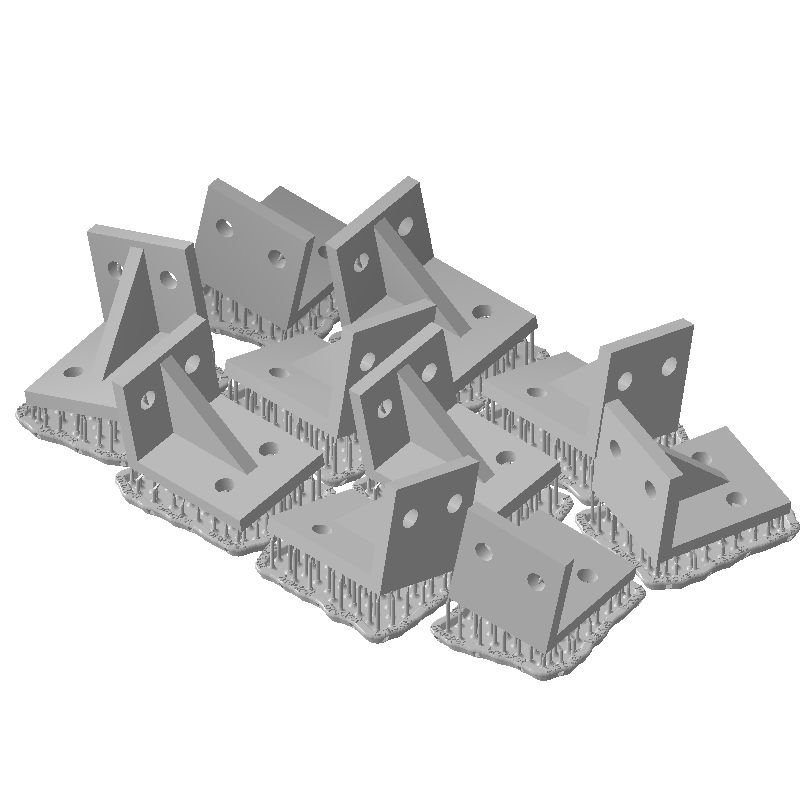
This example contains three files: `instant_quote.py` prepares and prices the build through the
PreForm API, `pricing.toml` stands in for the shop's price list, and `bracket.stl` is a sample
part.
## Read the price list
`pricing.toml` starts with the shop's machine type, machine hour rate, and setup fee:
```toml
[shop]
currency = "USD"
machine_type = "FORM-4-0" # Form 4; "FRML-4-0" for Form 4L
machine_hour_rate = 6.00 # charged per hour of print time
setup_fee = 5.00 # charged once per job
```
Each material follows as its own table, with its scene settings and a price per mL:
```toml
[materials.tough-2000]
label = "Tough 2000 V2"
material_code = "FLTO2002"
layer_thickness_mm = 0.1
# The catalog's default settings for this material on Form 4. SUPPORTSV2 gives each
# part a larger raft, so fewer copies fit on the build platform.
print_setting = "SUPPORTSV1"
price_per_ml = 0.22
```
The material code, layer thickness, and print setting of each entry must be a combination that
`/v1/print-setting/list/` returns for the machine type. Tough 2000 V2 uses `SUPPORTSV1`, which
that list labels as the default settings; with `SUPPORTSV2`, each bracket gets a larger raft and
10 copies no longer fit on a Form 4 build platform.
`main` reads the price list from `PRICING_FILE`, next to the script, unless `--pricing` names
another:
```python
PRICING_FILE = Path(__file__).parent / "pricing.toml"
PREFORM_URL = os.environ.get("FL_LOCAL_BASE_URL", "http://localhost:44388")
```
It then parses the arguments, splits the price list into the shop and its materials, and checks
the names passed with `--materials`:
```python
def main() -> None:
parser = argparse.ArgumentParser(
description=__doc__, formatter_class=argparse.RawDescriptionHelpFormatter
)
parser.add_argument(
"parts", nargs="+", type=Path, help="STL, OBJ, or 3MF files to quote"
)
parser.add_argument(
"--copies", type=int, default=1, help="copies of each part (default: 1)"
)
parser.add_argument(
"--materials", help="comma-separated names from the price list (default: all)"
)
parser.add_argument(
"--pricing", type=Path, default=PRICING_FILE,
help="price list (default: pricing.toml)",
)
parser.add_argument("--json", action="store_true", help="print the quotes as JSON")
args = parser.parse_args()
pricing = tomllib.loads(args.pricing.read_text())
shop, materials = pricing["shop"], pricing["materials"]
chosen = args.materials.split(",") if args.materials else list(materials)
unknown = [name for name in chosen if name not in materials]
if unknown:
sys.exit(
f"Unknown materials {unknown}; the price list has {', '.join(materials)}"
)
```
## Connect to PreForm
Make sure [PreForm is ready to accept connections](https://developer.formlabs.com/getting-started/install.md#connect-to-a-running-preform).
`main` connects to PreForm, exits with a hint if nothing answers, and quotes each chosen material:
```python
with FormlabsClient() as client:
try:
preform = client.preform.connect(base_url=PREFORM_URL)
except PreFormApiError as exc:
sys.exit(
f"{exc}\nNo PreForm at {PREFORM_URL}; "
"open PreForm and start its API server"
)
quotes = [
quote(preform, shop, materials[name], args.parts, args.copies)
for name in chosen
]
```
`PREFORM_URL` defaults to `http://localhost:44388`. Set `FL_LOCAL_BASE_URL` to reach PreForm on
another port or host.
## Create a scene for each material
`quote` creates one scene for each material on the list, with that material's scene settings:
```python
def quote(
preform: PreFormApi, shop: dict, material: dict, parts: list[Path], copies: int
) -> dict:
"""Prepare the parts as one build in this material and price it."""
scene = preform.create_scene(
machine_type=shop["machine_type"],
material_code=material["material_code"],
layer_thickness_mm=material["layer_thickness_mm"],
print_setting=material.get("print_setting", "DEFAULT"),
)
```
A scene holds one material and layer thickness, so each material is quoted on its own build.
`print_setting` falls back to `DEFAULT` when the price list names none.
## Import and copy the parts
`quote` imports every part, then duplicates the models to the requested number of copies:
```python
for part in parts:
# The server resolves the path from its own working directory.
preform.import_models(
scene_id=scene.scene_id, file=str(part.resolve()), name=part.stem
)
if copies > 1:
preform.duplicate_models(scene_id=scene.scene_id, count=copies - 1)
```
`duplicate_models` makes `count` copies of every model in the scene, so passing `--copies 10` to the script gives 10
of each part.
## Prepare the build as it prints
The scripts run orientation, supports, and layout to produce a build.
```python
# Supports depend on the orientation, and the layout on both.
preform.auto_orient_models(scene_id=scene.scene_id)
preform.auto_support_models(scene_id=scene.scene_id)
try:
preform.auto_layout_models(scene_id=scene.scene_id)
except PreFormApiError as exc:
# By default a layout that can't place every model fails and leaves the
# scene unchanged, so the material is reported unpriced.
return {
"material": material["label"],
"error": f"does not fit on one build platform ({exc.code})",
}
```
When the copies don't fit, the layout fails with `OPERATION_FAILED` and the table reports the
material unpriced.
## Get an estimate of the print time
`calculate_print_time` slices the build and estimates the print time based on the generated slices. `get_scene` returns the scene's material usage and layer count:
```python
print_time_s = preform.calculate_print_time(scene_id=scene.scene_id).total_print_time_s
state = preform.get_scene(scene_id=scene.scene_id)
```
## Delete the scene
The `finally` block deletes the scene, including after a failed layout:
```python
finally:
preform.delete_scene(scene_id=scene.scene_id)
```
## Price the build
The price is the resin times the price per mL, plus the print hours times the machine hour rate,
plus the setup fee:
```python
# volume_ml includes the supports and the raft; unsupported_volume_ml is the
# parts alone.
resin_ml = state.material_usage.volume_ml
cost = {
"resin": round(resin_ml * material["price_per_ml"], 2),
"machine": round(print_time_s / 3600 * shop["machine_hour_rate"], 2),
"setup": shop["setup_fee"],
}
# The total is the sum of the rounded lines, so the quote adds up as printed.
cost["total"] = round(sum(cost.values()), 2)
```
`volume_ml` is the same figure as `MaterialUsage_mL` in the scene's job metadata. For 10 brackets
in Grey V5, the supports and raft add 37.7 mL to the 89.2 mL of the parts, so pricing the parts
alone would undercharge the resin by about 30%.
## Run the example
In a terminal, run the script from the folder you unzipped. With pip, [install the Formlabs SDK](https://developer.formlabs.com/getting-started/install.md) first; with [uv](https://docs.astral.sh/uv/getting-started/installation/), `uv run` installs it from the example's `pyproject.toml`.
**pip:**
```bash
python instant_quote.py bracket.stl --copies 10
```
**uv:**
```bash
uv run instant_quote.py bracket.stl --copies 10
```
The script reads the parts named on the command line and `pricing.toml` from its own folder, and
writes nothing. To quote only some materials, pass their names from the price list, such as
`--materials grey,tough-2000`; to use another price list, pass `--pricing`. The script prints one line for each material:
```
1 part(s) x 10 on FORM-4-0: bracket.stl
material layers print time parts mL resin mL resin machine setup total USD
Grey V5 420 1h 15m 89.2 126.9 19.04 7.56 5.00 31.60
Clear V5 420 1h 09m 89.2 129.5 19.42 6.91 5.00 31.33
Tough 2000 V2 420 1h 43m 89.0 141.3 31.09 10.33 5.00 46.42
Rigid 10K V1.1 420 1h 33m 89.3 126.8 44.40 9.32 5.00 58.72
Precision Model V1 840 2h 23m 89.1 142.1 19.89 14.30 5.00 39.19
```
The layout uses a random seed, so the print time and the machine line can differ by a few seconds
and cents between runs.
## What's next
- [Part labels](https://developer.formlabs.com/examples/part-labels.md)
# Dental presets
This script turns the scans of a dental case into a print-ready `.form` file using one of the [dental presets](https://formlabs.com/support/Preparing-dental-scans-for-printing-with-PreForm-Dental-Workspace-Form-2-Form-3B-Form-3BL/#select-template): orthodontic models, restorative models, occlusal guards, or surgical guides. The script takes in the kind of case and STL files and picks the resin and layer height, orients each arch, adds supports to appliances, and lays everything out on the build platform.
[View on GitHub](https://github.com/Formlabs/formlabs-api-python/tree/v1.0.0-alpha/examples/dental-presets) [Download dental-presets.zip](https://github.com/Formlabs/formlabs-api-python/releases/download/v1.0.0-alpha/dental-presets.zip)
A dental lab can use presets (one of the provided presets, or create your own in PreForm), for example: a night guard that always goes on LT Comfort, tilted and supported, or a crown and bridge model that always goes on Precision Model at 0.05 mm. PreForm
stores those choices as *presets* in its dental workspace, where a technician can pick one and PreForm
sets up the build. This script applies the same presets from a script, so scans from your lab
software or an intraoral scanner become a build ready to send, without a user having to open PreForm.
`presets.toml` holds the four presets PreForm offers for Form 4B, with the same settings:
| Preset | Prints | Resin | Layer height | Tilt | Supports |
| --- | --- | --- | --- | --- | --- |
| `orthodontic-models` | Arch models, such as for thermoforming aligners and retainers | Fast Model V1 | 0.16 mm | 0° | None |
| `restorative-models` | Crown and bridge models | Precision Model V1 | 0.05 mm | 0° | None |
| `occlusal-guards` | Night guards and splints | LT Comfort V1.1 | 0.1 mm | 15° | Full raft, labeled |
| `surgical-guides` | Guides for implant placement | Surgical Guide V1 | 0.1 mm | 15° | Full raft, labeled |
The script uses the PreForm API to orient, support, and lay out the models, and it reads back the
size of each model, whether it fits on the build platform, the layer count, and the resin volume.

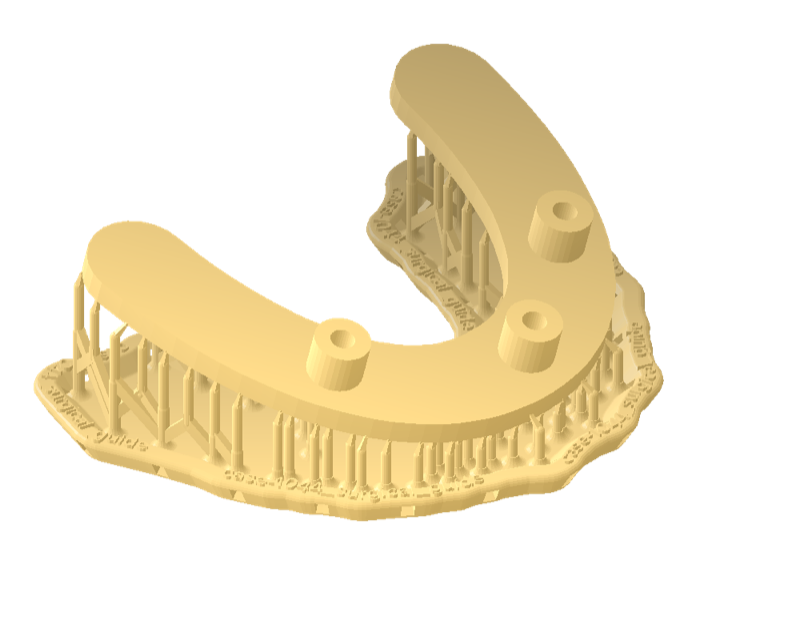
This example contains two files and a folder: `apply_preset.py` builds the job through the PreForm API,
`presets.toml` holds the presets, and the `scans` folder holds four sample STL files: an upper and a
lower arch for case 1042, an occlusal guard for case 1043, and a surgical guide for case 1044. The
sample files are simple generated shapes that stand in for real scans.
## Describe each kind of case
A preset is one table in `presets.toml`. The surgical guide preset prints on Surgical Guide V1 at
0.1 mm, tilts the guide 15 degrees, and supports it on a labeled raft:
```toml
[presets.surgical-guides]
material = "Surgical Guide V1"
material_code = "FLSGAM01"
layer_thickness_mm = 0.1
tilt_deg = 15
[presets.surgical-guides.supports]
raft_type = "FULL_RAFT"
raft_label_enabled = true
density = 1.0
touchpoint_size_mm = 0.5
internal_supports_enabled = true
```
The keys under `supports` are the PreForm API's own parameter names. A preset without a
`supports` table prints without supports, as the two model presets do. To add your lab's own kind of
work, such as dentures or dies, add another `[presets.]` table.
## Fill in the defaults
`load_presets` fills each preset from the `[defaults]` table:
```python
def load_presets(path: Path) -> dict[str, dict]:
"""Read the presets, each filled in from the [defaults] table."""
data = tomllib.loads(path.read_text())
defaults = data.get("defaults", {})
return {name: defaults | preset for name, preset in data["presets"].items()}
```
The defaults set the machine type `FORM-4-0`, which covers Form 4B, the `DEFAULT` print setting, a
tilt of 0 degrees, millimeter units, no mesh repair, the `DENTAL` layout, and 1 mm between models.
A preset overrides any of them, as the orthodontic models preset does with `F4_FAST_ARCHES`, the Fast
Arch print setting.
## Connect to PreForm
Make sure [PreForm is ready to accept connections](https://developer.formlabs.com/getting-started/install.md#connect-to-a-running-preform).
`PREFORM_URL` reads the PreForm address from `FL_LOCAL_BASE_URL`, with a default of port 44388:
```python
PREFORM_URL = os.environ.get("FL_LOCAL_BASE_URL", "http://localhost:44388")
```
`main` connects to PreForm at that address, and exits with a hint if nothing answers:
```python
with FormlabsClient() as client:
try:
preform = client.preform.connect(base_url=PREFORM_URL)
except PreFormApiError as exc:
sys.exit(
f"{exc}\nNo PreForm at {PREFORM_URL}; open PreForm and start its API server"
)
```
Set `FL_LOCAL_BASE_URL` to reach PreForm on another port or host.
## Create the scene
`apply_preset` creates a scene with the preset's printer, material, print setting, and layer
thickness:
```python
def apply_preset(
preform: PreFormApi, preset: dict, models: list[Path], out: Path
) -> Scene:
"""Build a scene from the preset and models, save it as a .form, and return it."""
scene = preform.create_scene(
machine_type=preset["machine_type"],
material_code=preset["material_code"],
print_setting=preset["print_setting"],
layer_thickness_mm=preset["layer_thickness_mm"],
)
```
The four values must be a combination that `/v1/print-setting/list/` offers. For any other
combination, the server returns `INPUT_ERROR` with the message `Scene type not supported`, and the
script stops before it imports a model.
## Import the models
Each STL file becomes one model, named after the file:
```python
for model in models:
# PreForm resolves paths from its own working directory.
preform.import_models(
scene_id=scene.scene_id,
file=str(model.resolve()),
name=model.stem,
units=ImportUnits(preset["units"]),
repair_behavior=RepairBehavior(preset["repair_behavior"]),
)
```
The model name carries the case number from the filename, such as `case-1042_upper_arch`. The
presets import in millimeters, the unit that intraoral scanners and dental CAD software export.
`IGNORE` leaves each mesh as it is.
## Orient the models
The `DENTAL` orientation mode puts each arch occlusal side up, then tilts the occlusal plane by the
preset's angle:
```python
# DENTAL puts each arch occlusal side up, then tilts the occlusal plane by tilt degrees.
preform.auto_orient_models(
scene_id=scene.scene_id, mode=AutoOrientMode.DENTAL, tilt=preset["tilt_deg"]
)
```
Models print flat at 0 degrees, and guards and guides print tilted at 15 degrees, as in PreForm.
## Generate supports
Guards and guides get supports and a raft:
```python
if supports := preset.get("supports"):
preform.auto_support_models(
scene_id=scene.scene_id,
raft_type=RaftType(supports["raft_type"]),
raft_label_enabled=supports["raft_label_enabled"],
density=supports["density"],
touchpoint_size_mm=supports["touchpoint_size_mm"],
internal_supports_enabled=supports["internal_supports_enabled"],
)
```
`FULL_RAFT` with `raft_label_enabled` embosses the model name on the raft, so after washing and
curing, a technician can match each appliance to its case by the number on the raft.
## Lay out and save the build
`auto_layout_models` places every model on the build platform, and `save_form_file` writes the job:
```python
preform.auto_layout_models(
scene_id=scene.scene_id,
mode=AutoLayoutMode(preset["layout_mode"]),
model_spacing_mm=preset["model_spacing_mm"],
)
preform.save_form_file(
file=str(out.resolve()), scene_ids=[scene.scene_id], project_name=out.stem
)
return preform.get_scene(scene_id=scene.scene_id)
```
The `DENTAL` layout mode uses the layout parameters of PreForm's dental workspace. The scene that
`get_scene` returns carries each model's `in_bounds` flag, and the script prints `NO` for any model
that doesn't fit on the build platform.
## Delete the scene
The `finally` block deletes the scene after the file is saved or a call fails:
```python
finally:
preform.delete_scene(scene_id=scene.scene_id)
```
## Run the example
With pip, [install the Formlabs SDK](https://developer.formlabs.com/getting-started/install.md) first; with [uv](https://docs.astral.sh/uv/getting-started/installation/), `uv run` installs it from the example's `pyproject.toml`.
1. In a terminal, list the presets from the folder you unzipped:
**pip:**
```bash
python apply_preset.py --list
```
**uv:**
```bash
uv run apply_preset.py --list
```
2. Apply a preset to the models of one case:
**pip:**
```bash
python apply_preset.py orthodontic-models scans/case-1042_*.stl
```
**uv:**
```bash
uv run apply_preset.py orthodontic-models scans/case-1042_*.stl
```
The script reads `presets.toml` and the model files you name, and writes `.form` next to
the first model. Pass `--out` to choose another path and `--presets` to read another presets file.
The two commands print the presets and the build:
```
orthodontic-models Fast Model V1, 0.16 mm, tilt 0, no supports
restorative-models Precision Model V1, 0.05 mm, tilt 0, no supports
occlusal-guards LT Comfort V1.1, 0.1 mm, tilt 15, supports
surgical-guides Surgical Guide V1, 0.1 mm, tilt 15, supports
orthodontic-models: Fast Model V1 (FLFMGR01) at 0.16 mm, tilt 0 deg, supports off
model size x*y*z mm supports fits
case-1042_lower_arch 40.2x53.2x14.7 no yes
case-1042_upper_arch 45.7x58.9x16.4 no yes
102 layers, 25.0 mL of resin
-> scans/orthodontic-models.form
```
## What's next
- [Print settings](https://developer.formlabs.com/core-concepts/print-settings.md)
- [Part labels](https://developer.formlabs.com/examples/part-labels.md)
# Print setting rollout
When a new version of a print setting is approved, every job already prepared on the old version
has to move to the new one. In PreForm, you would open each job, change the print setting in **Job
Setup**, and save it again. This script does that for a whole folder of `.form` files. It changes
only the jobs on the setting you name, saves the changed jobs to a new folder, and reports the layer
count and print time of each job before and after the change.
[View on GitHub](https://github.com/Formlabs/formlabs-api-python/tree/v1.0.0-alpha/examples/print-setting-rollout) [Download print-setting-rollout.zip](https://github.com/Formlabs/formlabs-api-python/releases/download/v1.0.0-alpha/print-setting-rollout.zip)
A dry run on the sample jobs prints:
```
rolling out: Lab arches v4 (FORM-4-0, FLFMGR01, F4_FAST_ARCHES at 0.2 mm)
dry run, nothing saved
file current setting layers print time status
case-1041.form Lab arches v3 150 -> 120 0h 15m -> 0h 12m changed
case-1042.form Lab arches v3 156 -> 125 0h 16m -> 0h 13m changed
case-1043.form Fast Arch 156 skipped, other setting
2 build volume(s) changed in 3 file(s)
```
The example contains the script, `roll_out_print_setting.py`, and its sample input:
- `queue/` holds three supported jobs. Two are on the custom setting `Lab arches v3`, and one is on
the shipped `Fast Arch` setting.
- `lab_arches_v3.fps` and `lab_arches_v4.fps` are two versions of a custom setting. Both are copies
of the Fast Arch setting for Fast Model V1 on Form 4 with a changed squish wait, and v4 also prints
at 0.2 mm layers.
## Choose the new setting
You can give the new setting as an `.fps` file, or as the four values of a shipped setting with
`--shipped`:
```python
paths = args.paths
if args.shipped:
machine, material, setting, thickness = args.shipped
target = dict(
machine_type=machine,
material_code=material,
print_setting=setting,
layer_thickness_mm=float(thickness),
)
elif paths[0].suffix.lower() == ".fps":
target = {"fps_file": str(paths[0].resolve())}
paths = paths[1:]
else:
sys.exit("Give an .fps file or --shipped MACHINE MATERIAL SETTING THICKNESS_MM")
```
Both end up as keyword arguments for the scene calls, so the rest of the script treats them the
same way.
## Connect to PreForm
Make sure [PreForm is ready to accept connections](https://developer.formlabs.com/getting-started/install.md#connect-to-a-running-preform).
The script reads the PreForm address from `FL_LOCAL_BASE_URL`, and uses `http://localhost:44388`
if it isn't set:
```python
PREFORM_URL = os.environ.get("FL_LOCAL_BASE_URL", "http://localhost:44388")
```
If PreForm doesn't answer, the script stops with a hint:
```python
with FormlabsClient() as client:
try:
preform = client.preform.connect(base_url=PREFORM_URL)
except PreFormApiError as exc:
sys.exit(
f"{exc}\nNo PreForm at {PREFORM_URL}; "
"open PreForm and start its API server"
)
```
## Check the new setting
Before it opens any job, `check_target` makes sure the new setting works. It checks a shipped
setting against PreForm's list, then creates an empty scene on the new setting and reads its name:
```python
def check_target(preform: PreFormApi, target: dict) -> str:
"""Create an empty scene on the target setting, so a bad setting stops the run."""
if "fps_file" not in target and not preform.validate_print_setting(**target).valid:
sys.exit(f"No shipped print setting matches {target}")
scene = preform.create_scene(**target)
try:
return describe(preform, scene.scene_id)
finally:
preform.delete_scene(scene_id=scene.scene_id)
```
If the `.fps` file is missing or can't be read, the script stops here with `INPUT_ERROR`. The name
on the first line of the report comes from the `.fps` file.
## Skip jobs on other settings
`roll_out` opens each `.form` file. Each build volume in the file opens as its own scene, and the
script reads the name of its print setting from the job metadata. With `--only-from`, it skips the
build volumes on any other setting:
```python
def roll_out(
preform: PreFormApi,
form: Path,
target: dict,
only_from: str | None,
out: Path | None,
with_time: bool,
) -> list[Row]:
"""Change each build volume in a .form file to the target, then save the file."""
opened = preform.open_form_file(file=str(form.resolve()))
rows: list[Row] = []
try:
for scene in opened.scenes:
label = form.name
if len(opened.scenes) > 1:
label = f"{form.name} / {scene.scene_name}"
before = setting_name(preform, scene.scene_id)
layers_before = preform.get_scene(scene_id=scene.scene_id).layer_count
if only_from and before != only_from:
rows.append(Row(label, before, str(layers_before), status=SKIPPED))
continue
```
Each build volume is one row of the report. A skipped one shows the status `skipped, other setting`:
```python
PREFORM_URL = os.environ.get("FL_LOCAL_BASE_URL", "http://localhost:44388")
SKIPPED = "skipped, other setting"
@dataclass
class Row:
label: str
setting: str
layers: str
print_time: str = ""
status: str = ""
```
The script matches the setting by the name PreForm shows. For a custom setting, that's the name
stored in its `.fps` file, so give each version of a custom setting its own name.
## Change the setting
`update_scene` takes the same arguments as `create_scene`. After the update, the script reads the
scene again for its layer count and models:
```python
time_before = print_time(preform, scene.scene_id) if with_time else ""
# Models, supports, and layout stay. On another printer's setting, the
# models move into its build volume, and any that don't fit are out of
# bounds.
preform.update_scene(scene_id=scene.scene_id, **target)
after = preform.get_scene(scene_id=scene.scene_id)
outside = [model.name for model in after.models if not model.in_bounds]
rows.append(
Row(
label,
before,
f"{layers_before} -> {after.layer_count}",
f"{time_before} -> {print_time(preform, scene.scene_id)}" if with_time else "",
f"{len(outside)} model(s) outside the build volume" if outside else "changed",
)
)
```
The layer count changes when the new setting has another layer thickness, as `lab_arches_v4.fps`
does. Models, supports, and layout stay as they are. If a model ends up outside the build volume,
the report says so, and the job is still saved.
## Compare print times
With `--print-time`, the script calculates the print time before and after the change:
```python
def print_time(preform: PreFormApi, scene_id: UUID) -> str:
seconds = preform.calculate_print_time(scene_id=scene_id).total_print_time_s
return f"{seconds // 3600}h {seconds % 3600 // 60:02d}m"
```
The calculation slices each build, which adds time to the run. Leave out `--print-time` to skip it.
## Save the job
The script saves the changed job to the `--out` folder, under its original file name, and the
report shows where:
```python
if out and any(row.status != SKIPPED for row in rows):
out.mkdir(parents=True, exist_ok=True)
saved = out / form.name
preform.save_form_file(
file=str(saved.resolve()),
scene_ids=[scene.scene_id for scene in opened.scenes],
project_name=opened.project_name or form.stem,
)
for row in rows:
if row.status != SKIPPED:
row.status = f"saved to {saved}" if row.status == "changed" else f"{row.status}, saved to {saved}"
```
The original files are never changed. With `--dry-run`, nothing is saved.
## Delete the scenes
The `finally` block deletes every scene the file opened, including when a call fails:
```python
finally:
for scene in opened.scenes:
preform.delete_scene(scene_id=scene.scene_id)
```
## Run the example
With pip, [install the Formlabs SDK](https://developer.formlabs.com/getting-started/install.md) first; with [uv](https://docs.astral.sh/uv/getting-started/installation/), `uv run` installs it from the example's `pyproject.toml`.
1. In a terminal, preview the change from the folder you unzipped:
**pip:**
```bash
python roll_out_print_setting.py lab_arches_v4.fps queue \
--only-from "Lab arches v3" --dry-run --print-time
```
**uv:**
```bash
uv run roll_out_print_setting.py lab_arches_v4.fps queue \
--only-from "Lab arches v3" --dry-run --print-time
```
2. Roll out the `.fps` file:
**pip:**
```bash
python roll_out_print_setting.py lab_arches_v4.fps queue \
--only-from "Lab arches v3" --out queue-v4
```
**uv:**
```bash
uv run roll_out_print_setting.py lab_arches_v4.fps queue \
--only-from "Lab arches v3" --out queue-v4
```
3. Roll out a shipped setting:
**pip:**
```bash
python roll_out_print_setting.py --shipped FORM-4-0 FLFMGR01 DEFAULT 0.2 queue \
--only-from "Lab arches v3" --out queue-v4
```
**uv:**
```bash
uv run roll_out_print_setting.py --shipped FORM-4-0 FLFMGR01 DEFAULT 0.2 queue \
--only-from "Lab arches v3" --out queue-v4
```
The script reads the `.fps` file and every `.form` file in `queue/`, and writes the changed jobs to
`queue-v4/`. To roll out another setting, pass its `.fps` file or its four `--shipped` values, and
pass the name of the setting it replaces to `--only-from`.
The preview prints the output at the top of this page. The `.fps` rollout saves both jobs:
```
rolling out: Lab arches v4 (FORM-4-0, FLFMGR01, F4_FAST_ARCHES at 0.2 mm)
file current setting layers status
case-1041.form Lab arches v3 150 -> 120 saved to queue-v4/case-1041.form
case-1042.form Lab arches v3 156 -> 125 saved to queue-v4/case-1042.form
case-1043.form Fast Arch 156 skipped, other setting
2 build volume(s) changed in 3 file(s)
```
The shipped setting rollout saves both jobs on the shipped setting:
```
rolling out: Default (FORM-4-0, FLFMGR01, DEFAULT at 0.2 mm)
file current setting layers status
case-1041.form Lab arches v3 150 -> 120 saved to queue-v4/case-1041.form
case-1042.form Lab arches v3 156 -> 125 saved to queue-v4/case-1042.form
case-1043.form Fast Arch 156 skipped, other setting
2 build volume(s) changed in 3 file(s)
```
## What's next
- [Print settings](https://developer.formlabs.com/core-concepts/print-settings.md)
- [Part labels](https://developer.formlabs.com/examples/part-labels.md)
# Part labels
This script turns a `.form` file into a build report that travels with the build through
post-processing and sorting. The report opens with a billing summary of every part by customer order
and the material it used, followed by a bag label for each part.
[View on GitHub](https://github.com/Formlabs/formlabs-api-python/tree/v1.0.0-alpha/examples/part-labels) [Download part-labels.zip](https://github.com/Formlabs/formlabs-api-python/releases/download/v1.0.0-alpha/part-labels.zip)
The script uses the PreForm API to calculate the material each model uses with its supports and share of the raft, the
build's total material usage, and it creates a rendered picture of each part from the `.form` file.
The order number and customer each part belongs to would come from an order system, exported
here as `orders.csv`.
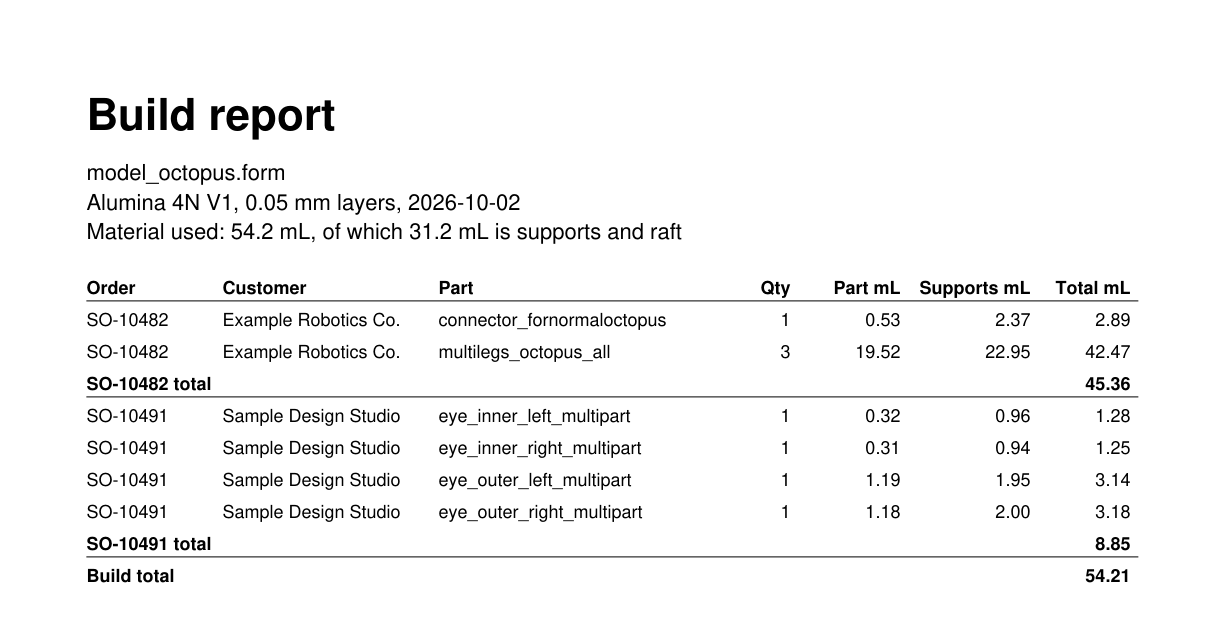
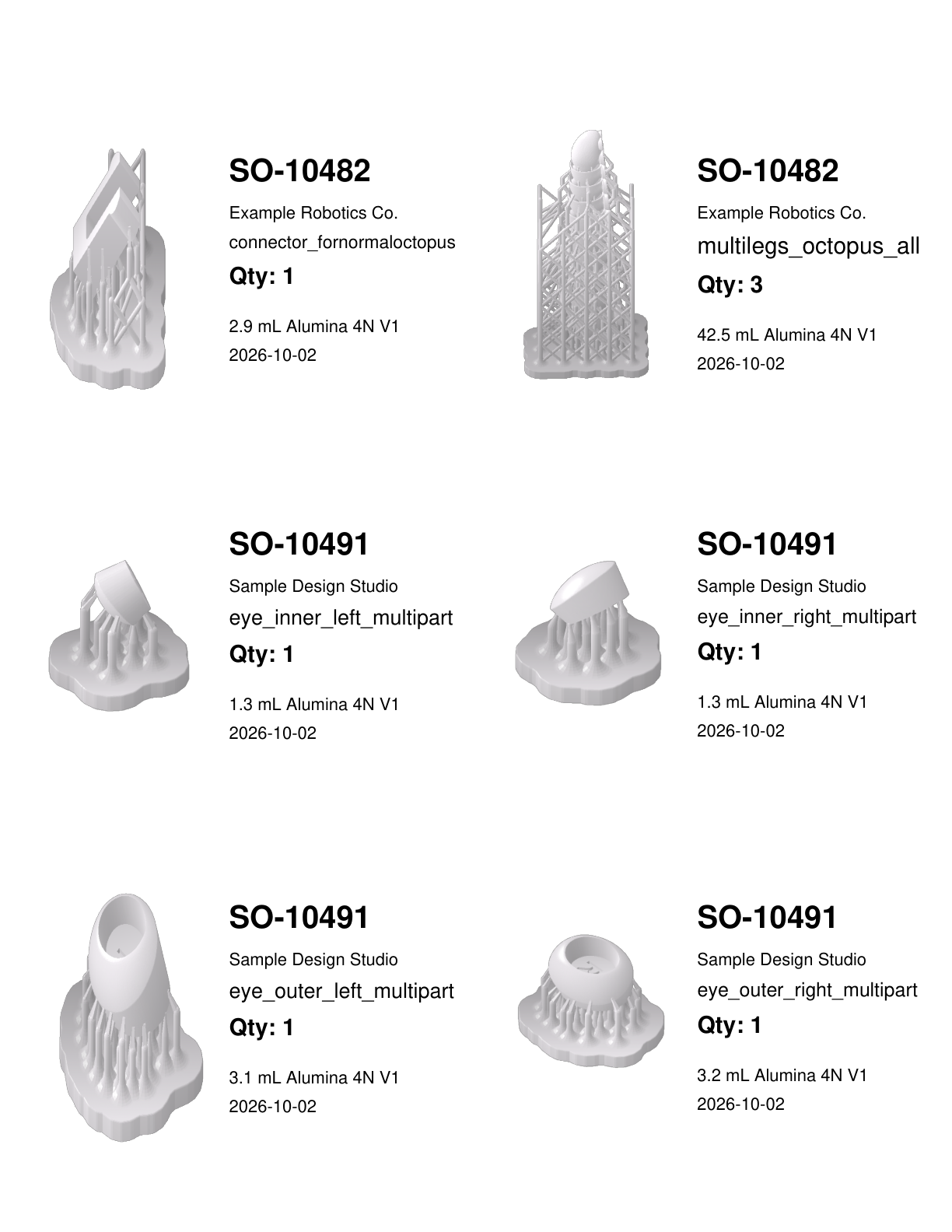
This example contains three files: `generate_part_labels.py` reads the build through the
PreForm API, `label_pdf_builder.py` draws the PDF with
[PyMuPDF](https://pymupdf.readthedocs.io), and `orders.csv` stands in to represent an export from
an order system.
## Match parts to orders
`read_orders` maps each part name to an order number and a customer, from the CSV
export:
```python
FORM_FILE = Path(__file__).parent / "model_octopus.form"
ORDERS_FILE = Path(__file__).parent / "orders.csv"
OUTPUT_PATH = FORM_FILE.with_suffix(".report.pdf")
DATE = datetime.date.today().isoformat()
PREFORM_URL = os.environ.get("FL_LOCAL_BASE_URL", "http://localhost:44388")
UNASSIGNED = ("UNASSIGNED", "No order found for this part")
def read_orders(path: Path) -> dict[str, tuple[str, str]]:
"""Map each part name to its (order, customer), from the order system's export."""
with path.open(newline="") as f:
rows = csv.DictReader(f)
return {row["part"]: (row["order"], row["customer"]) for row in rows}
```
A part missing from the export is reported under `UNASSIGNED`, so a sorter sees it on
the label before it goes into a bag.
## Connect to PreForm
Make sure [PreForm is ready to accept connections](https://developer.formlabs.com/getting-started/install.md#connect-to-a-running-preform).
`main` connects to PreForm, and exits with a hint if nothing answers:
```python
def main() -> None:
orders = read_orders(ORDERS_FILE)
with FormlabsClient() as client:
try:
preform = client.preform.connect(base_url=PREFORM_URL)
except PreFormApiError as exc:
sys.exit(
f"{exc}\nNo PreForm at {PREFORM_URL}; "
"open PreForm and start its API server"
)
```
`PREFORM_URL` defaults to `http://localhost:44388`. Set `FL_LOCAL_BASE_URL` to reach PreForm on
another port or host.
## Open the .form file
`open_form_file` returns one scene for each build volume in the file, and each scene
gets its own section of the report:
```python
def fetch_builds(
preform: PreFormApi,
form_file: Path,
orders: dict[str, tuple[str, str]],
images: Path,
) -> list[Build]:
"""Open the .form file and return its builds, with a Label per distinct part."""
opened = preform.open_form_file(file=str(form_file.resolve()))
```
The path is absolute because PreForm resolves it from its own working directory.
## Group the models into parts
Each scene's job metadata holds the material, the build's total material usage, and an
entry for every model. A build usually holds several copies of one part, so the script
groups models on their display name and mesh hash:
```python
builds: list[Build] = []
try:
for scene in opened.scenes:
metadata = preform.get_scene_metadata(scene_id=scene.scene_id)
# Copies of a part share a display name and a mesh hash, so grouping on that
# pair gives one entry per distinct part, holding the metadata of every copy.
parts: dict[tuple[str, str], list[dict]] = defaultdict(list)
for model in metadata["Models"]:
parts[(model["DisplayName"], model["RawMeshHash"])].append(model)
labels: list[Label] = []
for (name, _mesh), copies in parts.items():
image = images / f"{len(builds):02d}-{len(labels):03d}.png"
```
The shape of the job metadata varies by printer family, so the script reads only the
keys it reports. The mesh hash keeps two different meshes that share a display name on
separate labels.
## Render a picture of each part
`render_scene` renders one copy of each part, zoomed and cropped to that model:
```python
for (name, _mesh), copies in parts.items():
image = images / f"{len(builds):02d}-{len(labels):03d}.png"
preform.render_scene(
scene_id=scene.scene_id,
file=str(image),
# The copies are identical, so any one will do
model_ids=[copies[0]["Guid"].strip("{}")],
view_type=RenderViewType.ZOOM_ON_MODELS,
crop_to_models=True,
image_size_px=600,
)
```
The images go to a temporary directory that `main` removes after the PDF is written.
## Record the material each part used
Each model's metadata entry carries two volumes. `ModelVolume_mL` is the part alone, and
`Volume_mL` adds the model's own supports and its share of the raft:
```python
order, customer = orders.get(name, UNASSIGNED)
labels.append(
Label(
order=order,
customer=customer,
part=name,
quantity=len(copies),
# Volume_mL is the model plus its own supports and share of the raft, so
# the parts' totals add up to the material the whole build uses.
model_ml=sum(copy["ModelVolume_mL"] for copy in copies),
material_ml=sum(copy["Volume_mL"] for copy in copies),
image=image,
)
)
```
The `Volume_mL` values of every model add up to the build's `MaterialUsage_mL`, so each
order is charged for the material its parts consumed, supports included. The script
sums the copies of a part because copies in different places on the build platform get
different supports.
## Sort the labels by order
The labels for one order print next to each other, so a sorter can bag one order at a
time:
```python
# Sorters work one order at a time, so the labels for an order print together.
labels.sort(key=lambda label: (label.order, label.part))
```
## Delete the scenes
The `finally` block deletes every scene the file opened:
```python
finally:
for scene in opened.scenes:
preform.delete_scene(scene_id=scene.scene_id)
```
Without it, a failure partway through leaves the scenes open on the server.
## Lay out the report
`label_pdf_builder.py` makes no PreForm API calls. `draw_summary` writes the billing
page: every part with its order, customer, quantity, and material, a subtotal for each
order, and the build total. `draw_label` puts the order number first, because that's
what a sorter matches the bag to:
```python
def draw_label(
page: pymupdf.Page, box: pymupdf.Rect, label: Label, build: Build
) -> None:
"""Picture on the left; order, customer, part, quantity, and footer on the right."""
pad = 0.08 * INCH
inner = pymupdf.Rect(box.x0 + pad, box.y0 + pad, box.x1 - pad, box.y1 - pad)
split = inner.x0 + inner.width * PICTURE_SHARE
page.insert_image(
pymupdf.Rect(inner.x0, inner.y0, split - pad, inner.y1),
filename=str(label.image),
keep_proportion=True,
)
footer = [f"{label.material_ml:.1f} mL {build.material}", build.date]
# Centre the text block against the picture, then fill it in from the top down.
text_pt = ORDER_PT + FOOTER_PT + PART_PT * PART_LINES + QTY_PT
block = (text_pt + len(footer) * FOOTER_PT) * LINE + GAP_PT
y = inner.y0 + max(0.0, (inner.height - block) / 2)
def draw_row(y: float, text: str, size: float, font: str, lines: int = 1) -> float:
"""Draw one row of text at y, and return the y the next row starts at."""
box = pymupdf.Rect(split, y, inner.x1, y + size * (LINE * lines + HEADROOM))
return y + fit_text(page, box, text, size, font)
# The order number leads: it is what a sorter matches the bag to.
y = draw_row(y, label.order, ORDER_PT, BOLD)
y = draw_row(y, label.customer, FOOTER_PT, REGULAR)
y = draw_row(y, label.part, PART_PT, REGULAR, lines=PART_LINES)
y = draw_row(y, f"Qty: {label.quantity}", QTY_PT, BOLD) + GAP_PT
for entry in footer:
y = draw_row(y, entry, FOOTER_PT, REGULAR)
```
The labels fill a US Letter sheet, six 4 x 3.333 inch labels to a page. To print on
other stock or add fields, change the constants at the top of the file and the `Label`
record; the API calls stay the same.
```python
# Page Formatting
INCH = 72.0
PAGE_W, PAGE_H = 8.5, 11.0
LABEL_W, LABEL_H = 4.0, 3.333
COLS, ROWS = 2, 3
MARGIN_X, MARGIN_Y = 0.16, 0.5
PICTURE_SHARE = 0.47 # how much of the label's width the picture takes
PER_PAGE = COLS * ROWS
ORDER_PT, PART_PT, QTY_PT, FOOTER_PT = 20.0, 15.0, 15.0, 11.0
LINE = 1.35 # height of one printed line, as a multiple of the type size
HEADROOM = 0.4 # extra room insert_textbox needs above the first line of a box
PART_LINES = 1 # lines allowed for the part name; raise to 2 to let long names wrap
GAP_PT = 10.0 # blank space between the quantity and the footer
REGULAR, BOLD = "helv", "hebo"
```
## Run the example
In a terminal, run the script from the folder you unzipped. With pip, [install the Formlabs SDK](https://developer.formlabs.com/getting-started/install.md) and
[PyMuPDF](https://pymupdf.readthedocs.io), which draws the PDF, first; with [uv](https://docs.astral.sh/uv/getting-started/installation/), `uv run` installs both from the
example's `pyproject.toml`.
**pip:**
```bash
pip install pymupdf
python generate_part_labels.py
```
**uv:**
```bash
uv run generate_part_labels.py
```
The script reads `model_octopus.form` and `orders.csv` from its own folder and writes
`model_octopus.report.pdf` next to them. To report on another build, change `FORM_FILE`
and `ORDERS_FILE`. The script prints what it found:
```
model_octopus.form: 6 labels, 54.2 mL of Alumina 4N V1
SO-10482 1 x connector_fornormaloctopus 2.9 mL
SO-10482 3 x multilegs_octopus_all 42.5 mL
SO-10491 1 x eye_inner_left_multipart 1.3 mL
SO-10491 1 x eye_inner_right_multipart 1.3 mL
SO-10491 1 x eye_outer_left_multipart 3.1 mL
SO-10491 1 x eye_outer_right_multipart 3.2 mL
-> model_octopus.report.pdf
```
## What's next
- [Web SLS Packer](https://developer.formlabs.com/examples/web-sls-packer.md)
# Web SLS Packer
Web SLS Packer is a web application that manages SLS jobs from a browser. People add parts to a
job, and the app packs them into Fuse 1+ or Fuse X1 build volumes with PreForm Server, one build
after another. Each build shows up as it's packed, and downloads as a `.form` file or goes to a
printer.
[View on GitHub](https://github.com/Formlabs/formlabs-api-python/tree/v1.0.0-alpha/examples/web-sls-packer) [Download web-sls-packer.zip](https://github.com/Formlabs/formlabs-api-python/releases/download/v1.0.0-alpha/web-sls-packer.zip)
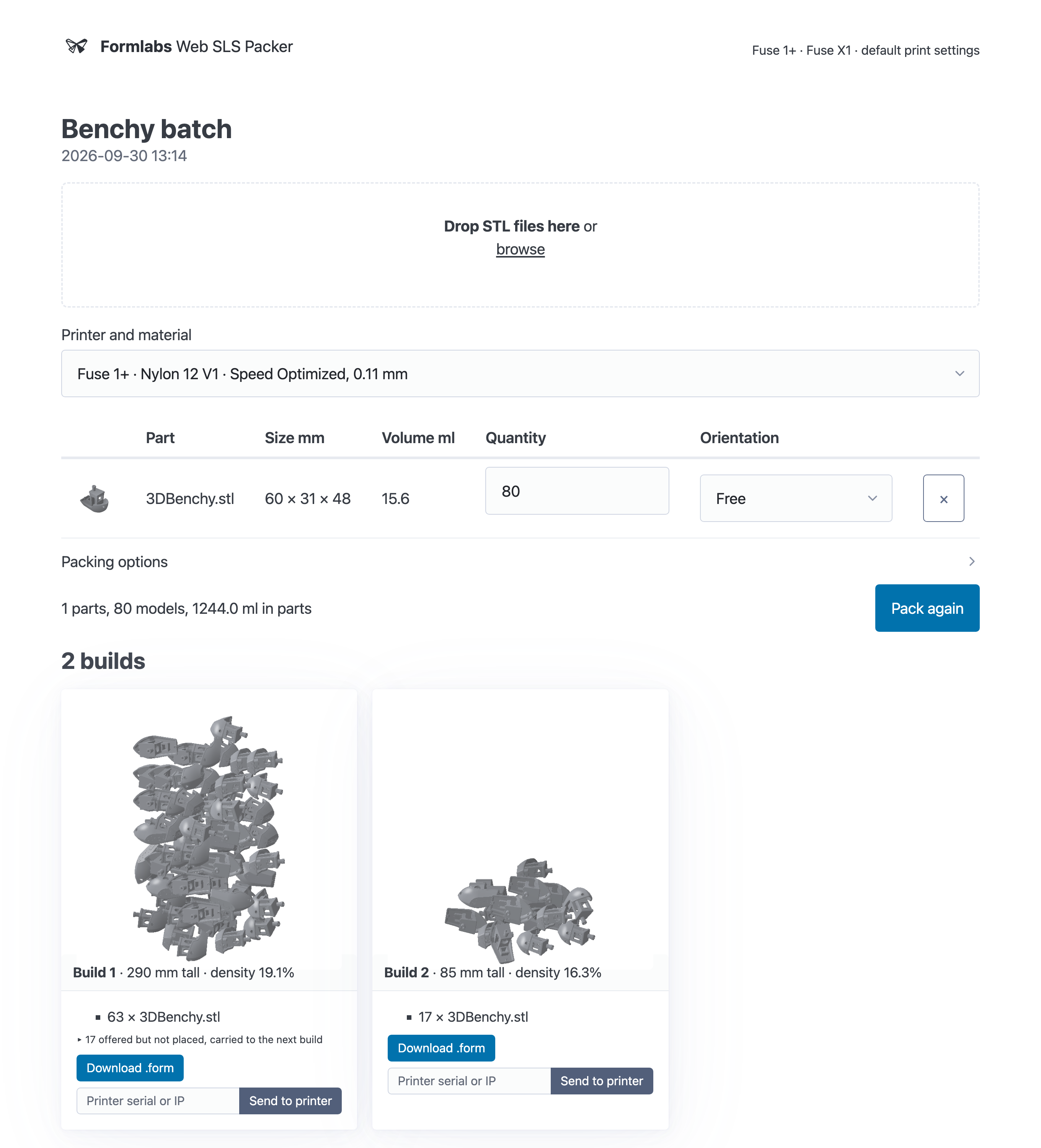
*Eighty boats pack into two Fuse 1+ builds: 63 in the first, and the 17 that did not fit in the second.*
The browser talks only to the app, and the app is the only client of PreForm Server.
## Set up the app
The app connects to PreForm Server once, when it starts, and every request uses that connection:
```python
@asynccontextmanager
async def lifespan(app: FastAPI):
with FormlabsClient() as client:
preform.connect(client)
for job in list_jobs():
if job.status == "packing":
job.status = "failed"
job.error = "interrupted by an app restart; press Pack again"
job.save()
yield
app = FastAPI(title="Web SLS Packer", lifespan=lifespan)
app.mount("/static", StaticFiles(directory=HERE / "static"), name="static")
```
`MACHINE_TYPES` in `preform.py` limits jobs to the Fuse 1+ and the Fuse X1, and each job offers the
materials PreForm lists for them. Each job lives in `jobs//`, next to `app.py`.
## Add parts
The `/jobs//parts` route saves each uploaded file, measures it, and renders a thumbnail:
```python
@app.post("/jobs/{job_id}/parts", response_class=HTMLResponse)
def add_parts(job_id: str, files: list[UploadFile]):
"""Save each mesh, measure it, and render a thumbnail.
The thumbnail also shows whether PreForm can import the mesh.
"""
job = load_job(job_id)
bv = preform.build_volume(job.machine_type, job.material_code)
added: list[Part] = []
for upload in files:
name = upload.filename
if not name or not name.lower().endswith((".stl", ".obj", ".3mf")):
continue
stamp = int(time.time() * 1000) % 10**9
part = Part(id=f"p{stamp:09d}{len(job.parts) + len(added):02d}",
filename=Path(name).name, volume_mm3=0, extents_mm=[0, 0, 0])
path = job.part_path(part)
with path.open("wb") as f:
shutil.copyfileobj(upload.file, f)
mesh = trimesh.load_mesh(path)
part.volume_mm3 = float(abs(mesh.volume))
part.extents_mm = [float(e) for e in mesh.bounding_box.extents]
part.import_error = preform.thumbnail(job.machine_type, job.material_code,
path, job.thumbnail_path(part))
part.thumbnail = part.import_error is None
part.reject_reason = packer.reject_reason(part, bv)
added.append(part)
job.parts += added
job.save()
return _rows_and_summary(job, added)
```
Rendering the thumbnail imports the part, so a file PreForm can't read is flagged as soon as it's
uploaded. Clicking the thumbnail opens a 3D view for choosing the pose the part prints in.
## Pack the builds
The `run` function fills one build at a time, and carries what doesn't fit to the next:
```python
def run(job: Job, on_build: Callable[[Build], None],
cancel: threading.Event | None = None) -> None:
"""Pack the job's parts into builds, saving the job after each.
Raises Cancelled between builds when asked.
"""
packer = Packer(job, cancel)
queue: list[Model] = []
for part in job.parts:
part.reject_reason = reject_reason(part, packer.bv)
if not part.reject_reason:
queue += [Model(len(queue) + i, part) for i in range(part.quantity)]
job.builds, job.unplaceable = [], []
while queue:
if packer.cancel.is_set():
raise Cancelled("packing cancelled")
chosen = packer.candidates(queue)
settings = preform.scene_settings(job.machine_type, job.material_code)
scene_id = str(packer.api.create_scene(**settings).scene_id)
spacing = job.spacing_mm if job.spacing_mm is not None else UNSET
try:
mapping = packer.stage(scene_id, chosen)
packed = packer.api.auto_pack_models(
scene_id=scene_id, seed=7, model_spacing_mm=spacing,
on_pack_failure=OnPackFailure.PARK_OUTSIDE_BUILD_VOLUME)
landed = [mapping[str(i)] for i in packed.packed_model_ids]
carried = [mapping[str(i)] for i in packed.unpacked_model_ids]
if not landed:
# Nothing fit, though every part passed reject_reason: the oldest
# part cannot be placed in its lock.
culprit = min(chosen, key=lambda m: m.seq).part
job.unplaceable.append(culprit.filename)
for m in chosen:
if m.part is not culprit:
bisect.insort(queue, m)
continue
for m in carried:
bisect.insort(queue, m)
if carried:
packer.api.delete_models(
scene_id=scene_id,
model_ids=[str(i) for i in packed.unpacked_model_ids])
result = packer.finish(scene_id, len(job.builds) + 1)
finally:
packer.api.delete_scene(scene_id=scene_id)
counts: dict[str, int] = {}
for m in landed:
counts[m.part.filename] = counts.get(m.part.filename, 0) + 1
build = Build(len(job.builds) + 1, counts, [m.part.filename for m in carried],
round(result["height"], 1), round(result["density"], 4),
result["density"] >= job.min_density, result["print_time_s"],
result["cool_time_s"], round(result["powder_kg"], 3),
round(result["sintered_kg"], 3))
job.builds.append(build)
job.save()
on_build(build)
```
Each build is offered about one build's worth of parts, mixed across part types. With
`PARK_OUTSIDE_BUILD_VOLUME`, a pack that can't place every model reports the rest in
`unpacked_model_ids` instead of failing, and those go back to the head of the queue.
## Run the example
In a terminal, start the app from the folder you unzipped. With pip, [install the Formlabs SDK](https://developer.formlabs.com/getting-started/install.md) and the app's other packages
first; with [uv](https://docs.astral.sh/uv/getting-started/installation/), `uv run` installs them all from the example's `pyproject.toml`.
**pip:**
```bash
pip install fastapi uvicorn jinja2 python-multipart numpy trimesh
python app.py
```
**uv:**
```bash
uv run app.py
```
Open `http://localhost:8323` in your browser.
# PreForm API
*v1.0.0-alpha* *OpenAPI 3.1.0*
The PreForm API prepares jobs for Formlabs printers and sends them to
print. PreForm, or PreForm Server, its windowless edition, serves it over
HTTP on your own machine.
From a script or a pipeline, import models; orient, support and lay them
out; check printability; and slice or print the result. It supports
Formlabs SLA and SLS printers;
[`/v1/print-setting/list/`](https://developer.formlabs.com/api-reference/print-settings/list-print-settings.md) lists every
printer and material a server supports.
Every v1 endpoint is under `/v1/`.
**Base URL**
`http://localhost:44388`
PreForm or PreForm Server on the local machine, on the port it was started with: PreForm Server's required `--port` argument, or the port chosen when starting the server from PreForm's File menu.
**Just getting started?**
- [Install the Developer Kit](https://developer.formlabs.com/getting-started/install.md) The Python SDK and PreForm
- [Create your first script](https://developer.formlabs.com/getting-started/quickstart.md) Prepare a part and slice it with the Python SDK
- [PreForm Server in PreForm](https://developer.formlabs.com/getting-started/install.md#install-preform) Start it from the desktop app's File menu
- [Headless PreForm Server](https://developer.formlabs.com/guides/headless-preform-server.md) Start it from a terminal or a service
## How PreForm Server differs from a cloud API
Most web APIs, such as the Formlabs Web API, are stateless REST services:
each request stands alone, and resources live in the provider's
database. PreForm Server is a desktop application with an HTTP
interface. It holds your work in memory between requests and runs
beside your files and printers.
1. **State lives in the server process.** Scenes, models, operations and
the Dashboard login live in the server's memory and vanish when it
exits. Save work with [`/v1/scene/save/`](https://developer.formlabs.com/api-reference/scenes/save-form-file.md)
and reopen it with [`/v1/scene/open/`](https://developer.formlabs.com/api-reference/scenes/open-form-file.md).
Create or open a scene first; endpoints that act on it take its
`scene_id`.
2. **Endpoints are actions, not resources.** Each route names an action,
such as `/v1/scene/model/auto-orient/`, and takes a JSON body, so most
are `POST`, reads included. A response reports what the action did,
such as the ids it created or work it left unfinished, not the
resulting state. Read state with
[`/v1/scene/get/`](https://developer.formlabs.com/api-reference/scenes/get-scene.md) or
[`/v1/scene/model/list/`](https://developer.formlabs.com/api-reference/modifying-models/list-models.md).
3. **Changes to a scene run in order.** Requests that change a scene run
one at a time, in arrival order, and each sees the results of those
before it. Reads don't wait: they return the scene as the last
finished request left it.
4. **It runs on your machine.** The server listens on localhost and has
no API keys: whatever reaches the port can use it, so keep the port
private to the machine. File paths in requests refer to the server's
machine, or to its container when it runs in Docker. Endpoints that
call Formlabs web services also need a Dashboard login
([`/v1/login/`](https://developer.formlabs.com/api-reference/authentication/login.md)), and say so in their descriptions.
**Architecture**
*Diagram: Your code calls PreForm Server over HTTP on localhost. The server holds scenes and operations in memory, and reads and writes files on this machine, sends jobs to printers, and calls Formlabs web services.*
## A typical session
Work follows the server's lifetime. Start the server or connect to one
that is running, create a scene, and change it one request at a time.
Each request builds on the state the last one left.
Save the scene to a `.form` file before the server exits; the scene goes
with it.
**A session**
**Python:**
```python
from formlabs_sdk import FormlabsClient
with FormlabsClient() as client:
# Attach to PreForm, or PreForm Server, on port 44388.
preform = client.preform.connect()
# The scene lives in the server's memory...
scene = preform.create_scene(
machine_type="FORM-4-0",
material_code="FLGPGR05",
layer_thickness_mm=0.1,
)
sid = scene.scene_id
preform.import_models(scene_id=sid, file="part.stl")
preform.auto_orient_models(scene_id=sid)
# ...so save it to keep it once the server exits.
preform.save_form_file(
scene_ids=[sid], file="part.form"
)
```
**cURL:**
```bash
curl -X POST "http://localhost:44388/v1/scene/create/" \
-H "Content-Type: application/json" \
-d '{
"machine_type": "FORM-4-0",
"material_code": "FLGPGR05",
"layer_thickness_mm": 0.1
}'
# {"scene_id": "3fa85f64-5717-4562-b3fc-2c963f66afa6", ...}
curl -X POST "http://localhost:44388/v1/scene/model/import/" \
-H "Content-Type: application/json" \
-d '{
"scene_id": "3fa85f64-5717-4562-b3fc-2c963f66afa6",
"file": "C:\\Models\\part.stl"
}'
curl -X POST "http://localhost:44388/v1/scene/model/auto-orient/" \
-H "Content-Type: application/json" \
-d '{
"scene_id": "3fa85f64-5717-4562-b3fc-2c963f66afa6"
}'
# Write the scene to disk: it is lost when the server exits.
curl -X POST "http://localhost:44388/v1/scene/save/" \
-H "Content-Type: application/json" \
-d '{
"scene_ids": [
"3fa85f64-5717-4562-b3fc-2c963f66afa6"
],
"file": "C:\\Models\\part.form"
}'
```
## Asynchronous requests
Slicing, importing a large CAD file and generating supports can take
minutes. Endpoints that can run long accept `?async=true` and return
`202 Accepted` at once, with an `operation_id` and an `operation_url`
(also in the `Location` header).
Poll the `operation_url` until `status` is `SUCCEEDED` or `FAILED`;
`result` then holds the response the endpoint would have returned
synchronously. Like scenes, operations do not survive a restart.
Without `async`, a call blocks until it finishes or reaches the server's
10-minute timeout.
**Asynchronous request**
**Python:**
```python
from formlabs_sdk import FormlabsClient
with FormlabsClient() as client:
preform = client.preform.connect()
# The SDK sends ?async=true and polls for you.
result = preform.import_models(
scene_id="3fa85f64-5717-4562-b3fc-2c963f66afa6",
file="assembly.step",
on_progress=lambda p: print(f"{p:.0%}"),
timeout=600,
)
```
**cURL:**
```bash
curl -X POST "http://localhost:44388/v1/scene/model/import/?async=true" \
-H "Content-Type: application/json" \
-d '{
"scene_id": "3fa85f64-5717-4562-b3fc-2c963f66afa6",
"file": "C:\\Models\\assembly.step"
}'
# Poll the operation_url until status is SUCCEEDED or FAILED.
curl "http://localhost:44388/v1/operation/get/?operation_id=7c9e6679-7425-40de-944b-e07fc1f90ae7"
```
**Response**
**202 Accepted:**
```json
{
"operation_id": "7c9e6679-7425-40de-944b-e07fc1f90ae7",
"operation_url": "/v1/operation/get/?operation_id=7c9e6679-7425-40de-944b-e07fc1f90ae7",
"message": "Operation accepted. Poll GET /v1/operation/get/?operation_id=7c9e6679-7425-40de-944b-e07fc1f90ae7"
}
```
**Polled: SUCCEEDED:**
```json
{
"id": "7c9e6679-7425-40de-944b-e07fc1f90ae7",
"status": "SUCCEEDED",
"progress": 1.0,
"result": {
"new_models": [{ "model_id": "c2a37eb2-8e4b-4b8e-9f37-1f5f2c1a9d10" }]
}
}
```
## Errors
The API uses conventional HTTP status codes, and every error body is an
`error` object with a `code` and a `message`.
**Program against `code`, never against `message`.** Codes are stable
SCREAMING_SNAKE_CASE identifiers from the [ErrorCode](https://developer.formlabs.com/api-reference/errors.md)
registry; new ones may appear without a version change, so handle codes
you don't recognize. Messages are for people and may change in any
release.
Each endpoint's *Error codes* table lists the codes it returns and their
causes.
**Error response**
**Python:**
```python
from formlabs_sdk import FormlabsClient, PreFormApiError
with FormlabsClient() as client:
preform = client.preform.connect()
sid = "3fa85f64-5717-4562-b3fc-2c963f66afa6"
try:
scene = preform.get_scene(scene_id=sid)
except PreFormApiError as error:
# Match on the code, never on the message.
if error.code != "INPUT_ERROR":
raise
print("No such scene")
```
**JSON:**
```json
{
"error": {
"code": "INPUT_ERROR",
"message": "Scene with given scene_id not found"
}
}
```
**HTTP status codes**
| Status | Meaning |
| --- | --- |
| `200 OK` | The request succeeded. |
| `202 Accepted` | Started with `?async=true`. Poll the returned operation. |
| `400 Bad Request` | The request was malformed or referenced something that does not exist. |
| `404 Not Found` | A referenced resource, such as a model or a connected printer, does not exist, or the path is not a v1 endpoint. The code is `NOT_FOUND`. |
| `409 Conflict` | The server's current state prevents the request: a referenced resource is busy with another operation, or the request needs more scenes than the server can hold. |
| `422 Unprocessable Entity` | The request is well-formed and names a real scene, but the scene's current configuration does not support it. |
| `500 Internal Server Error` | Something failed inside the server that the request did not cause. |
## Conventions
### Identifiers
Scenes, models and operations have UUIDs. Responses give them bare
(`3fa85f64-5717-4562-b3fc-2c963f66afa6`); requests also accept the
braced form (`{3fa85f64-...}`).
### Enums
Enum values are SCREAMING_SNAKE_CASE. **Request enums are closed:** a
value outside the list fails with `400 JSON_SCHEMA_MATCH_ERROR`. Later
releases may accept new values, which older servers reject the same way.
**Response enums are open:** schemas that list their values under
`x-extensible-enum`, instead of `enum`, may gain values in any release
without a version change, so treat an unrecognized value as unknown
instead of failing.
### Created models
Requests that add models return their ids, in no particular order. When
they derive from an existing model (copies, split bodies, a drilled
plug), the response names it too, so you never need to diff the scene.
**Enum in a response**
```json
{
"id": "7c9e6679-7425-40de-944b-e07fc1f90ae7",
"status": "IN_PROGRESS",
"progress": 0.42
}
```
## Resources
**[Server Info](https://developer.formlabs.com/api-reference/server-info.md)**
Endpoint for checking that the server is up and reachable.
1 endpoint
**[Authentication](https://developer.formlabs.com/api-reference/authentication.md)**
Endpoints for checking and managing your Formlabs Dashboard account login state. Endpoints that call Formlabs web services need a login session, and say so in their descriptions.
3 endpoints
**[Scenes](https://developer.formlabs.com/api-reference/scenes.md)**
Create, load, and enumerate scenes. A scene is the top-level unit of work: it holds a printer/material/print-setting combination and the models placed within that printer's build volume.
12 endpoints
**[Modifying Models](https://developer.formlabs.com/api-reference/modifying-models.md)**
Endpoints that take actions on models within a scene.
24 endpoints
**[Printability Checks](https://developer.formlabs.com/api-reference/printability-checks.md)**
Scene printability checks. These endpoints analyze the scene and report problems. They never modify it.
7 endpoints
**[Print Settings](https://developer.formlabs.com/api-reference/print-settings.md)**
The catalog of machine/material/layer-thickness/print-setting combinations Formlabs ships settings for, and validation of a candidate combination against that catalog.
3 endpoints
**[Operations](https://developer.formlabs.com/api-reference/operations.md)**
Poll and manage the long-running operations started by endpoints called with `?async=true`. `/v1/operation/get/` returns one operation's status and, once finished, its result. See the *Asynchronous requests* section of the introduction.
3 endpoints
**[Devices](https://developer.formlabs.com/api-reference/devices.md)**
Enumerate printers and Fleet Control printer groups PreForm knows about, discover new ones on the network, and upload firmware to them. Discovering Dashboard-registered printers and Fleet Control queues requires a Dashboard login (`/v1/login/`).
3 endpoints
**[Errors](https://developer.formlabs.com/api-reference/errors.md)**
The shared error envelope and the registry of stable error codes. See the *Errors* section of the introduction for the contract.
Reference
**[Schemas](https://developer.formlabs.com/api-reference/schemas.md)**
The 135 request and response schemas.
[Download the OpenAPI specification](https://developer.formlabs.com/reference/openapi-v1.yml)
# Resources
## Releases and downloads
**[Release notes](https://developer.formlabs.com/resources/release-notes.md)**
Where to find what changed in each release of the PreForm API, PreForm, and printer firmware.
**[Downloads](https://developer.formlabs.com/resources/downloads.md)**
PreForm Server, PreForm, and the Formlabs Python SDK, Dashboard developer credentials, and the bundle for each
example.
## Running and building
**[CLI & command-line options](https://developer.formlabs.com/resources/preform-server-cli.md)**
PreFormServer's options, such as `--port` and `--scene-cache-size`, how to start the server, and the
environment variable that turns off its telemetry.
**[For coding agents](https://developer.formlabs.com/resources/for-coding-agents.md)**
The `llms.txt` index, the Markdown copy of every page, and the OpenAPI specification, and the lines that point a
coding agent at them.
## Help
**[Support & forum](https://developer.formlabs.com/resources/support.md)**
Where to ask questions and discuss the PreForm API and the Formlabs Python SDK.
## What's next
- [Downloads](https://developer.formlabs.com/resources/downloads.md)
- [For coding agents](https://developer.formlabs.com/resources/for-coding-agents.md)
- [Create your first script](https://developer.formlabs.com/getting-started/quickstart.md)
# Release notes
The release notes for the PreForm API, PreForm, and printer firmware are published on the Formlabs support site.
- **PreForm API:** [Formlabs API downloads and release notes](https://formlabs.com/support/Formlabs-API-downloads-and-release-notes/)
lists each PreForm Server release, with its download and what changed in the API.
- **PreForm:** [PreForm release notes](https://formlabs.com/support/PreForm-Release-Notes/) lists what changed in
each PreForm release, including the print settings and materials it adds.
- **Printer firmware:** [Firmware release notes](https://formlabs.com/support/Firmware-Release-Notes/) lists what
changed in each firmware release for Formlabs printers.
## What's next
- [Downloads](https://developer.formlabs.com/resources/downloads.md)
- [API reference](https://developer.formlabs.com/api-reference.md)
# Downloads
The Formlabs Python SDK needs PreForm Server or PreForm, and the Formlabs Web API needs
developer credentials from Dashboard. Each example ships as its own bundle.
## Software
The downloads for each API:
- [PreForm Server and release notes](https://formlabs.com/support/Formlabs-API-downloads-and-release-notes/)
- [PreForm](https://formlabs.com/software/preform/)
- [Formlabs Python SDK](https://github.com/Formlabs/formlabs-api-python)
- [Dashboard developer credentials](https://dashboard.formlabs.com/#developer)
## Example bundles
Each example page links its own bundle:
| Bundle | Example |
| --- | --- |
| [printability-report.zip](https://github.com/Formlabs/formlabs-api-python/releases/download/v1.0.0-alpha/printability-report.zip) ([source](https://github.com/Formlabs/formlabs-api-python/tree/v1.0.0-alpha/examples/printability-report)) | [Printability report](https://developer.formlabs.com/examples/printability-report.md), with five sample STL files in `order-1234`, one for each outcome |
| [instant-quote.zip](https://github.com/Formlabs/formlabs-api-python/releases/download/v1.0.0-alpha/instant-quote.zip) ([source](https://github.com/Formlabs/formlabs-api-python/tree/v1.0.0-alpha/examples/instant-quote)) | [Instant quote](https://developer.formlabs.com/examples/instant-quote.md), with a sample price list and a sample bracket STL file |
| [dental-presets.zip](https://github.com/Formlabs/formlabs-api-python/releases/download/v1.0.0-alpha/dental-presets.zip) ([source](https://github.com/Formlabs/formlabs-api-python/tree/v1.0.0-alpha/examples/dental-presets)) | [Dental presets](https://developer.formlabs.com/examples/dental-presets.md), with `presets.toml` and four sample STL files |
| [print-setting-rollout.zip](https://github.com/Formlabs/formlabs-api-python/releases/download/v1.0.0-alpha/print-setting-rollout.zip) ([source](https://github.com/Formlabs/formlabs-api-python/tree/v1.0.0-alpha/examples/print-setting-rollout)) | [Print setting rollout](https://developer.formlabs.com/examples/print-setting-rollout.md), with three queued Form 4 jobs and two `.fps` files |
| [part-labels.zip](https://github.com/Formlabs/formlabs-api-python/releases/download/v1.0.0-alpha/part-labels.zip) ([source](https://github.com/Formlabs/formlabs-api-python/tree/v1.0.0-alpha/examples/part-labels)) | [Part labels](https://developer.formlabs.com/examples/part-labels.md), with `model_octopus.form` and `orders.csv` |
| [web-sls-packer.zip](https://github.com/Formlabs/formlabs-api-python/releases/download/v1.0.0-alpha/web-sls-packer.zip) ([source](https://github.com/Formlabs/formlabs-api-python/tree/v1.0.0-alpha/examples/web-sls-packer)) | [Web SLS Packer](https://developer.formlabs.com/examples/web-sls-packer.md) |
## What's next
- [Examples](https://developer.formlabs.com/examples.md)
- [Install the Developer Kit](https://developer.formlabs.com/getting-started/install.md)
# Support & forum
Formlabs Support and the Formlabs community forum answer questions about the PreForm API, the Formlabs Python SDK,
and the printers and software they drive.
- **Formlabs Support:** [formlabs.com/support](https://formlabs.com/support/) has the guides and troubleshooting
articles for Formlabs printers, PreForm, and Dashboard, and is where you contact the Formlabs support team.
- **Formlabs forum:** [forum.formlabs.com](https://forum.formlabs.com/) is where you can ask other Formlabs users and
developers, and share what you've built.
- **Provide Feedback & Report Bugs** Use [this form](https://formlabs.qualtrics.com/jfe/form/SV_eyOAX6uxuRsltnE) to provide feedback and report bugs directly to the PreForm API team.
## What's next
- [Release notes](https://developer.formlabs.com/resources/release-notes.md)
- [Errors](https://developer.formlabs.com/api-reference/schemas/errorcode.md)
# CLI & command-line options
`PreFormServer` is a command-line application. It serves the PreForm API on the
port you pass, and `--help` lists its options.
## Options
PreForm Server accepts the following options:
| Option | Effect |
| --- | --- |
| `-p`, `--port ` | The port to serve the PreForm API on. Required. |
| `--scene-cache-size ` | The maximum number of scenes the server keeps. When the limit is exceeded, the server deletes the least recently used scene. The default is 30, and the maximum is 10000. |
| `--export-support-bundle` | Bundle the structured diagnostic logs and text logs into one archive for Formlabs support, then exit. |
| `-v`, `--version` | Print the version. |
| `-h`, `--help` | Print the options. |
## Start the server
Start the server on port 44388:
**macOS:**
```bash
/Applications/PreFormServer.app/Contents/MacOS/PreFormServer --port 44388
```
**Windows:**
```powershell
C:\PreFormServer\PreFormServer.exe --port 44388
```
The server prints `READY FOR INPUT` when it accepts requests. The SDK's `launch()`
method passes `--port` and waits for that line.
## Environment variables
PreForm Server reads the following variable:
| Variable | Effect |
| --- | --- |
| `DISABLE_PREFORMSERVER_TELEMETRY` | Set to `1` to turn off telemetry. The server reports the telemetry state on its first line of output. |
To pass variables to a server the SDK starts, use the `env` argument of `launch()`.
## What's next
- [Headless PreForm Server](https://developer.formlabs.com/guides/headless-preform-server.md)
# For coding agents
Coding agents such as Claude Code, Cursor, and GitHub Copilot write better PreForm
automations when they read these docs as text. Every page on this site is published in
forms an agent reads directly, generated from the same source as the pages at build time.
## Machine-readable entry points
| Path | What it holds |
| --- | --- |
| [`/llms.txt`](https://developer.formlabs.com/llms.txt) | An index of every page with a one-line summary, the points to know before writing code against the SDK, and the link to the specification, following [llmstxt.org](https://llmstxt.org) |
| [`/llms-full.txt`](https://developer.formlabs.com/llms-full.txt) | Every guide and example page in one Markdown file, for an agent that reads the whole site into its context |
| A page's URL with `.md` for its trailing slash | That page as Markdown, with its code samples inlined and its links pointing at other pages' Markdown copies. This page is [`/resources/for-coding-agents.md`](https://developer.formlabs.com/resources/for-coding-agents.md) |
| An API reference page's Markdown copy, such as [`/api-reference/scenes.md`](https://developer.formlabs.com/api-reference/scenes.md) | A list of that page's endpoints, each with its method and path, its SDK method, and a link to its own Markdown copy, such as `/api-reference/scenes/create-scene.md`. Each schema has one too, such as `/api-reference/schemas/scene.md`, so an agent fetches the one endpoint it needs |
| [`/reference/openapi-v1.yml`](https://developer.formlabs.com/reference/openapi-v1.yml) | The PreForm API v1 specification, OpenAPI 3 in YAML |
The API reference pages are generated from the specification, and so is the Python SDK's
client, so what the specification describes is what the SDK does. Each SDK method is an
operationId from the specification in snake_case. Every HTML page also declares its
Markdown copy with ``.
## Point your agent at the docs
Add these lines to the instructions file your agent reads in your project, such as
`AGENTS.md`, `CLAUDE.md`, or `.cursor/rules`:
```markdown
## Formlabs PreForm automation
This project uses the Formlabs Python SDK (`formlabs-sdk`, imported as `formlabs_sdk`)
to drive PreForm and PreForm Server. Before writing or changing code that calls it:
- Read https://developer.formlabs.com/llms.txt and follow its links to the pages you
need.
- Look up endpoints, fields, and error codes in
https://developer.formlabs.com/reference/openapi-v1.yml or the API reference's
Markdown pages. Don't guess method or field names.
- Start from the Python sample on the endpoint's reference page.
```
An agent that loads a whole site before it starts takes
[`llms-full.txt`](https://developer.formlabs.com/llms-full.txt) instead. It holds the guides and the examples; the
endpoints are in the API reference's Markdown pages and the specification.
## What's next
- [API reference](https://developer.formlabs.com/api-reference.md)
- [Install the Developer Kit](https://developer.formlabs.com/getting-started/install.md)