
Group
A Printer Group is a set of printers in a Dashboard account, organized by location or purpose, such as one print room or one team's printers. Fleet Control gives each group a group queue, so a print job sent to the group goes to whichever printer in it is ready first. The group also controls who can see and use its printers.
How a group fits in#
A group sits between Dashboard and the printers registered to the account:
flowchart TB
    account["Dashboard account"] --> g1["Printer Group"]
    account --> g2["Printer Group"]
    g1 --> q1["Group queue"]
    g1 --> p1["Printer"] & p2["Printer"]
    g2 --> q2["Group queue"]
    g2 --> p3["Printer"]
    q1 -. "next print job" .-> p1 & p2
    q2 -. "next print job" .-> p3
- Printers: A printer is registered to one Dashboard account, and an admin places it in a group.
- Members: A group has admins and members. An admin invites people by email, renames the group, and moves printers between groups.
- Group queue: The print jobs sent to the group, waiting for a printer to be ready. For more information, see Queue.
Create a group#
An admin creates and manages groups in Dashboard. To create a group:
- Under Printers, click Organize Printers.
- Click + New Printer Group.
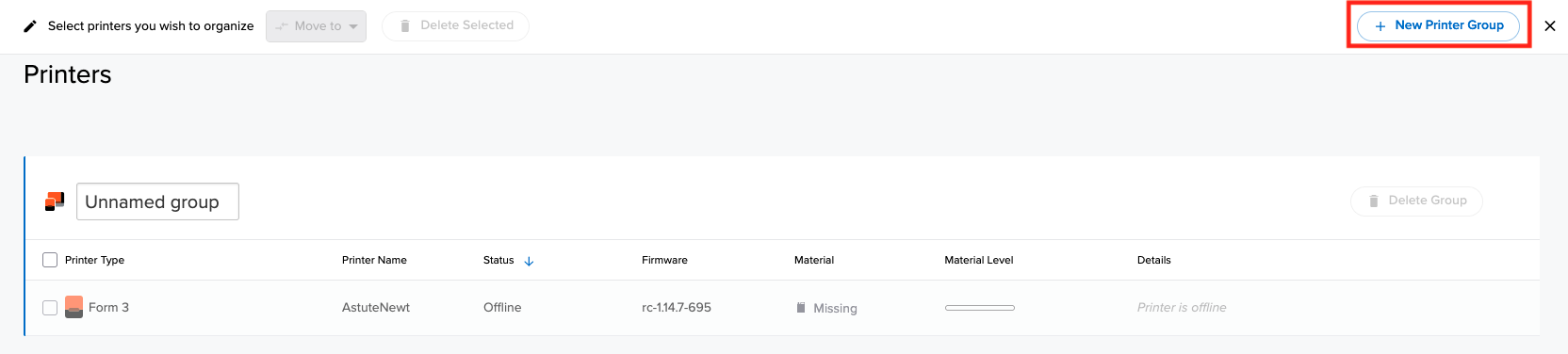
The person who creates a group becomes its admin. To add a printer to Dashboard, enter the registration code from the printer's touchscreen. For more information, see Managing a Printer Group with Dashboard and Adding and removing printers on Dashboard.
Find a group from your code#
After PreForm logs in to the account, the printer list on the Job Setup screen shows each Printer Group with the model Printer Group:
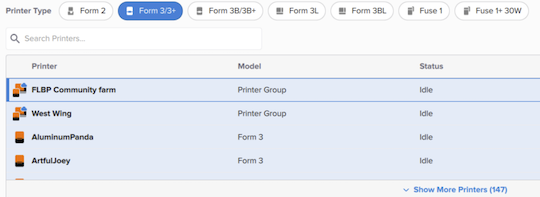
The device list in the PreForm API holds the same groups, each with its queue ID and the printer types in it:
import os

from formlabs_sdk import FormlabsClient

with FormlabsClient(
    username=os.environ["FORMLABS_USERNAME"],
    password=os.environ["FORMLABS_PASSWORD"],
) as client:
    # login=True logs PreForm in with the client's credentials. PreForm lists Printer
    # Groups only while it's logged in to the account.
    with client.preform.connect(login=True) as preform:
        for device in preform.list_devices().devices:
            # Only a Printer Group record carries a dashboard_queue_id.
            if hasattr(device, "dashboard_queue_id"):
                queue_id = device.dashboard_queue_id
                print(device.id, queue_id, device.supported_machine_type_ids)
The dashboard_queue_id field is the value that the print_scene method takes as its printer ID to send a print job to the group. The supported_machine_type_ids field lists the printer types in the group, so create the scene with one of them.
The Formlabs Web API lists, creates, and manages groups and their members. For more information, see the Formlabs Web API reference.