
Create your first script
A job starts as an STL file and ends as a print job in a printer's queue. The quickstart.py script takes it through PreForm: job setup, import, orient, support, layout, and upload.
You need:
- The SDK and the PreForm Insider build: For more information, see Install the Developer Kit.
- An STL file: The script takes its path as the first argument.
- To print, a printer: Either a printer on your local network or a printer or printer group that's registered to your Formlabs account. To print with printers not on your local network, the application needs PreForm to be logged in to your account with Log In in the Account menu. Without a printer, the script saves a
.formfile.
Download the complete script: quickstart.py.
Set up the script#
The script reads the model path from the command line and the printer from the environment:
import os
import sys
from pathlib import Path

from formlabs_sdk import FormlabsClient, PreFormApiError

# PreForm resolves a relative path against its own working directory.
PART = str(Path(sys.argv[1]).resolve())
# Without a printer, the script saves a .form file.
PRINTER = os.environ.get("FORMLABS_PRINTER")
Connect to PreForm#
Open PreForm, click File > Start PreForm Server, and click start on the dialog that follows. PreForm then accepts API requests on the specified port, by default this is port 44388. The connect() method creates a PreForm client attached to that PreForm window:
with FormlabsClient() as client:
    # connect() attaches to the PreForm window on port 44388, and each call shows
    # up in it. Leaving this with block leaves PreForm open.
    with client.preform.connect() as preform:
The remaining steps run inside the with block, and each one shows up in the PreForm window as it runs. When the script ends, PreForm stays open with the prepared build. For more information, see PreForm client.
Create a scene#
A scene holds the choices you make in Job Setup: the printer type, material, and layer thickness for every model in it:
# FORM-4-0 is the Form 4, and FLGPGR05 is Grey V5.
scene = preform.create_scene(
    machine_type="FORM-4-0",
    material_code="FLGPGR05",
    layer_thickness_mm=0.1,
)
For more information, see Scene and Print settings. For other printers and resins, see the List print settings endpoint.
To learn more about choosing a material and layer thickness for a part, read our support articles: Print Settings guide, Selecting a material in PreForm, and Adjusting layer thickness in PreForm.
To choose a material and layer thickness for a part, see the Print Settings guide, Selecting a material in PreForm, and Adjusting layer thickness in PreForm.
Import the model#
The import_models method loads the STL file into the scene, as opening the file in PreForm does:
# One file can produce several models, so the result holds a list of their ids.
imported = preform.import_models(scene_id=scene.scene_id, file=PART)
first = imported.new_models[0]
print(f"Imported {len(imported.new_models)} model(s): {first.model_id}")
The result lists each new model's model_id, which later calls take to act on that model alone. For more information, see Model and the support article about Opening a model in PreForm.
Prepare the model#
Three calls orient, support, and lay out every model in the scene, as Auto-Orient All in the Orient tool, Auto-Generate All in the Support tool, and Layout All in the Layout tool do in PreForm:
# Without model_ids, each call applies to every model in the scene.
preform.auto_orient_models(scene_id=scene.scene_id)
preform.auto_support_models(scene_id=scene.scene_id)
preform.auto_layout_models(scene_id=scene.scene_id)
These operations run asynchronously in PreForm, and the SDK polls each one until it finishes. The PreForm window shows the result:
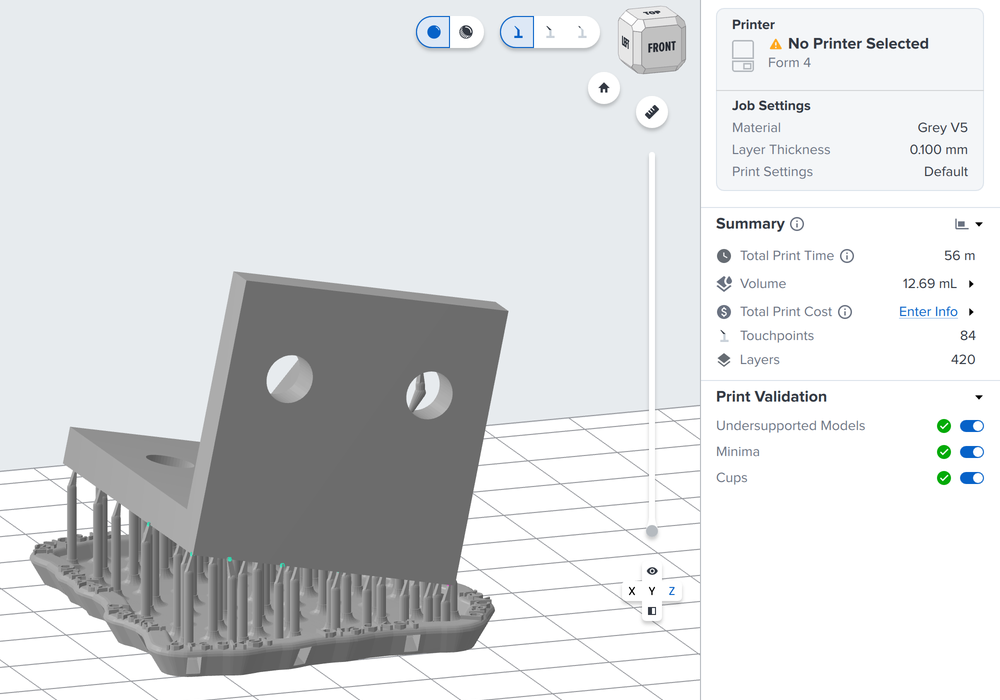
For more information about long running operations, see Operation.
To learn more about what each step does to the print, read the following support articles: Model orientation best practices for SLA printing, How supports work in SLA printing, and Automatic layout settings for SLA printing.
Check the model#
The validate_manifoldness method reports whether each mesh is a closed solid, and the calculate_print_time method returns the print time in seconds:
# A mesh that isn't a closed solid reports is_manifold as False.
report = preform.validate_manifoldness(scene_id=scene.scene_id)
for model_id, result in report.per_model_results.additional_properties.items():
    if not result.is_manifold:
        print(f"Model {model_id} is not manifold: {result.status}")

# The faster estimate_print_time raises ESTIMATION_NOT_SUPPORTED on a Form 4.
times = preform.calculate_print_time(scene_id=scene.scene_id)
print(f"Print time: {times.total_print_time_s / 3600:.1f} h")
For the other checks PreForm runs on a scene, see Validate.
Send the job to a printer#
With a printer set, the print_scene method uploads the job to it. Without one, the save_form_file method writes a .form file to the current directory:
if PRINTER:
    try:
        # printer takes a serial name, an IP address, or a Fleet Control
        # queue ID. print_now=False puts the print job in the queue without
        # starting it.
        job = preform.print_scene(
            scene_id=scene.scene_id,
            printer=PRINTER,
            job_name="quickstart",
            print_now=False,
            on_progress=lambda p: print(f"Uploading {p:.0%}"),
        )
        print(f"Queued job {job.job_id} on {PRINTER}")
    except PreFormApiError as exc:
        print(f"Could not send to {PRINTER}: {exc.code}: {exc.message}")
else:
    # A .form file holds the scene, and it opens in PreForm.
    preform.save_form_file(
        file=str(Path("quickstart.form").resolve()),
        scene_ids=[scene.scene_id],
    )
    print("Saved quickstart.form")
print_now=False does what Upload to Queue does in PreForm, and print_now=True does what Print Now does. For more information, see Job, Queue, and Sending a print job from PreForm to a printer.
To send the job to a Printer Group, set FORMLABS_PRINTER to the group's queue ID. For more information, see Group.
To set up a group, see Using Group Queues in Dashboard.
Run the script#
To save a .form file, pass the STL file:
python3 quickstart.py part.stlpy -3 quickstart.py part.stlThe script prints the model name, the print time, and the file it saved:
Imported part
Print time: 0.5 h
Saved quickstart.form
To queue the job on a printer, set the printer's serial name first:
export FORMLABS_PRINTER=Form4-ExampleDevice
python3 quickstart.py part.stl$env:FORMLABS_PRINTER = "Form4-ExampleDevice"
py -3 quickstart.py part.stlStart the print job on the printer after you load the build platform. To learn more, read our support article on Starting a print job on the printer touchscreen.
To run the same script with no window, start PreForm Server instead of PreForm. The connect() method attaches to either. For more information, see Headless PreForm Server.
Handle errors#
Every failed call raises PreFormApiError. When no PreForm listens on port 44388, the connect() method raises it with the code SERVER_UNREACHABLE. In that case, click File > Start PreForm Server in PreForm, click Start, and run the script again.
For the error codes that the PreForm API returns, see Errors.