
Install the Developer Kit
The Formlabs Python SDK, formlabs-sdk, drives PreForm from your own scripts. A script connects to PreForm, then imports, orients, supports, and lays out models through the PreForm API while the PreForm window shows each step.
Requirements#
The SDK runs on the following:
| Component | Version |
|---|---|
| Python | 3.11 or later |
| PreForm or PreForm Server | 3.64 or later |
| Operating system | macOS or Windows |
Install the SDK#
Install the SDK using pip:
pip install "formlabs-sdk @ git+https://github.com/Formlabs/formlabs-api-python"pip install "formlabs-sdk @ git+https://github.com/Formlabs/formlabs-api-python"Install PreForm#
Scripting PreForm from the SDK is available only in the PreForm Insider build. To get it, join the PreForm Insider Program. The Insider build installs next to your current PreForm and leaves it in place.
Open the Insider build, click File > Start PreForm Server, and click Start with your desired port in the textbox (default 44388). PreForm then accepts API requests on your specified port, and every script on these pages attaches to it with the connect() method.
Connect to a running PreForm#
With PreForm's API server started, attach to it and print who is logged in:
from formlabs_sdk import FormlabsClient

with FormlabsClient() as client:
    # connect() attaches to the running PreForm and leaves its login alone. Closing
    # the client leaves PreForm running.
    preform = client.preform.connect()
    user = preform.current_user()
    print(f"PreForm {preform.version} at {preform.base_url}")
    # current_user() returns None when PreForm is logged out.
    print(f"Logged in as {user.username}" if user else "Not logged in")
When the connect() method finds nothing on the port, it fails with SERVER_UNREACHABLE. Check that PreForm is open and that Stop Server is visible in the File menu, indicating that PreForm Server is running. To use another port, pass the port argument.
Prepare a model from Python#
The following script prepares one STL file for a Form 4 in Grey V5 in the open PreForm window:
"""Connect to PreForm from Python and prepare a model in its window.

Before you run it, open PreForm, click File > Start PreForm Server, and start the server
on port 44388.
"""

import sys
from pathlib import Path

from formlabs_sdk import FormlabsClient

# PreForm resolves a relative path against its own working directory.
PART = str(Path(sys.argv[1]).resolve())

with FormlabsClient() as client:
    # connect() attaches to the PreForm window on port 44388. Leaving this with block
    # leaves PreForm open, with the prepared scene in it.
    with client.preform.connect() as preform:
        print(f"PreForm {preform.version} at {preform.base_url}")

        # FORM-4-0 is the Form 4, and FLGPGR05 is Grey V5.
        scene = preform.create_scene(
            machine_type="FORM-4-0",
            material_code="FLGPGR05",
            layer_thickness_mm=0.1,
        )
        preform.import_models(scene_id=scene.scene_id, file=PART)
        preform.auto_orient_models(scene_id=scene.scene_id)
        preform.auto_support_models(scene_id=scene.scene_id)
        preform.auto_layout_models(scene_id=scene.scene_id)

        # Each call shows up in the PreForm window as it runs.
        print("Prepared. Look at the scene in the PreForm window.")
Run it with the path to an STL file, for example python start_preform.py part.stl. The create_scene method makes the choices of the Job Setup screen: printer, material, and layer thickness. The next three calls correspond to Auto-Orient All, Auto-Generate All, and Layout All in PreForm's orientation, supports, and layout tools.
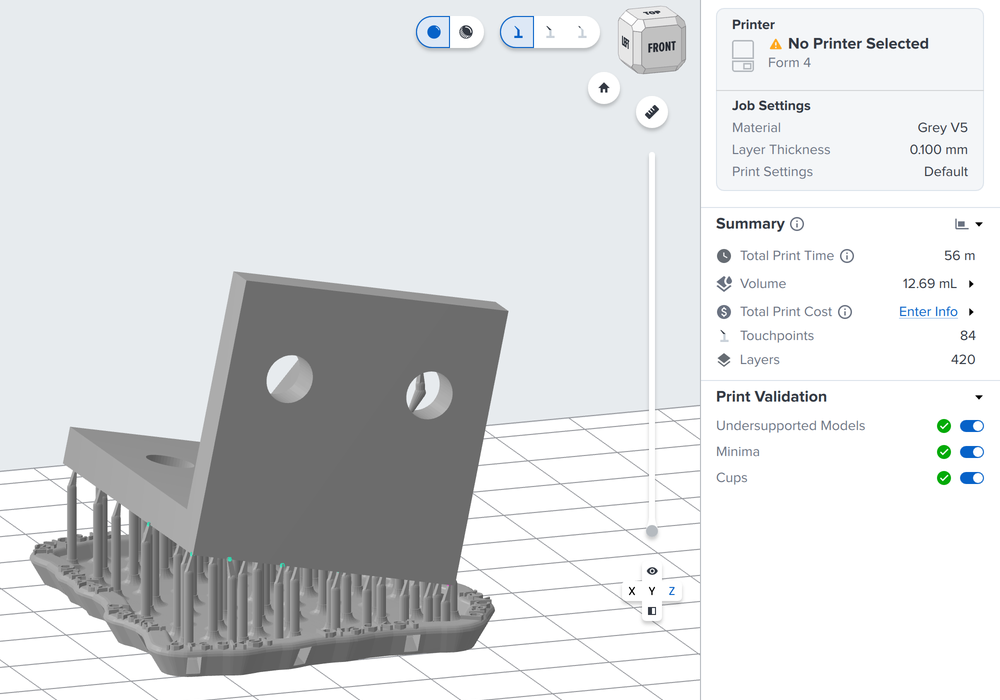
For the codes of other printers and materials, the list_print_settings method lists every combination the running PreForm supports. Create your first script walks through each of these calls and sends the job to a printer.
To run the same scripts with no window, for example on a MES server, see Headless PreForm Server.
Connect to Dashboard#
Dashboard is the web interface for Fleet Control and print history. It shows the printers connected to your account, their Printer Groups and group queues, and every print job they ran. The Formlabs Web API reads and manages the same data, and it authenticates with developer credentials.
Log in to Dashboard with your Formlabs account, or create an account there.
Open the Developer tab and create an application. Dashboard shows its Client ID and Client Secret.
Store both values as environment variables:
Terminalexport FORMLABS_CLIENT_ID=... export FORMLABS_CLIENT_SECRET=...PowerShell$env:FORMLABS_CLIENT_ID = "..." $env:FORMLABS_CLIENT_SECRET = "..."
Caution: The client secret grants the same access as your application. Keep it out of source control and out of public facing code.
To check the credentials, request a developer token:
import os

from formlabs_sdk import FormlabsClient, FormlabsCredentials

credentials = FormlabsCredentials(
    client_id=os.environ["FORMLABS_CLIENT_ID"],
    client_secret=os.environ["FORMLABS_CLIENT_SECRET"],
)

with FormlabsClient(credentials=credentials) as client:
    # A rejected client ID or secret raises InvalidCredentialsError.
    client.auth.developer_token()
    print("Developer credentials accepted")
A rejected client ID or secret raises InvalidCredentialsError. The SDK has no client for the Formlabs Web API endpoints. For the first request, see Dashboard client.